No company paid to be on this list. Prices were checked on November 17, 2026 and can change. How we make money.
At a glance
| # | Product | Best for | Starting price | Free option |
|---|---|---|---|---|
| 1 | Unlimited transfer size at a low price | $6/mo | Free plan (2 GB per transfer) | |
| 2 | Dropbox users sending to clients | $9.99/mo | Free plan (2 GB per transfer) | |
| 3 | Quick sends with no account | See site | Free plan (3 GB per 30 days) | |
| 4 | Businesses sending files of any size | See site | Free plan (5 GB per transfer) | |
| 5 | Very large video and media transfers | $0.25/GB | Free plan (15 GB/mo) |
The list
 Smash
Best for unlimited transfer size at a low price Smash is the best value for most people who send big files now and then. The free tier needs no account and keeps files for up to 7 days. Smash Pro removes the size limit, keeps files for up to 30 days and adds 1 TB of storage for $72 a year.
What stands out
- Free transfers need no payment or sign-up
- Pro has no transfer size limit and keeps files up to 30 days
- Password protection on every plan, including free
- Pro is $72 a year or $10 billed monthly
Keep in mind
- Free transfers are capped at 2 GB and wait behind Pro transfers
- Prices exclude VAT
 Dropbox Transfer
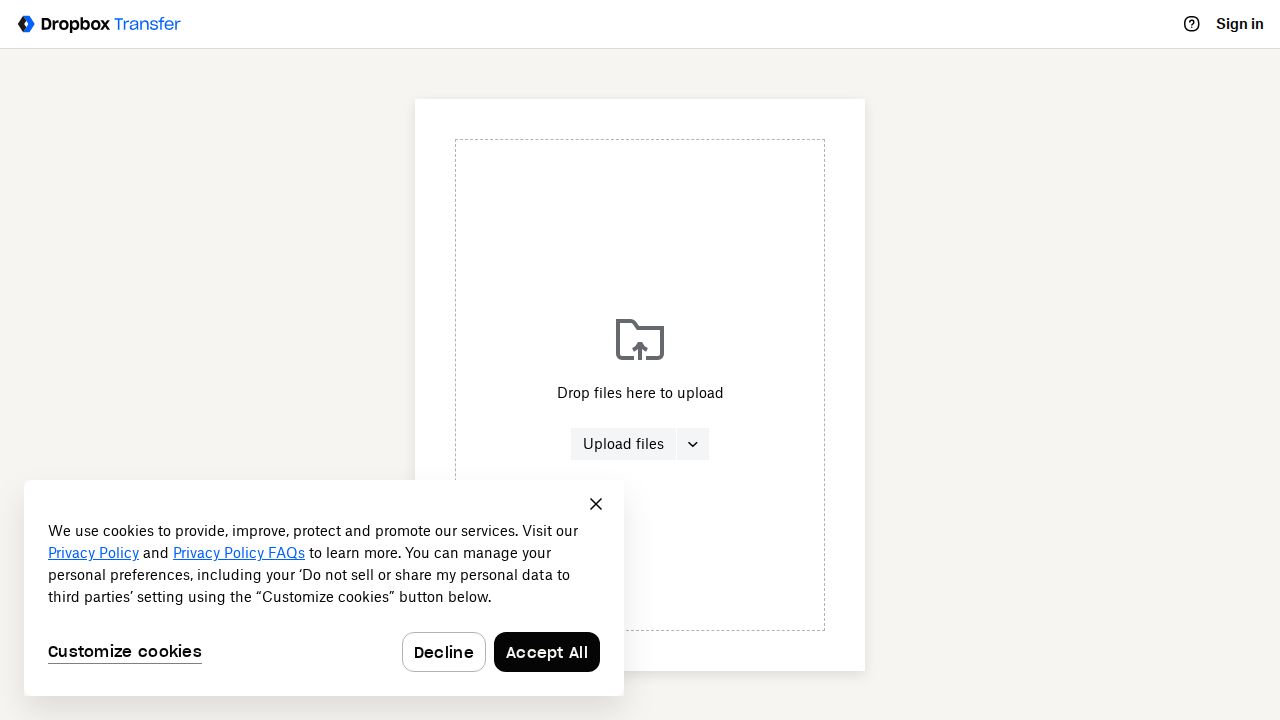
Best for dropbox users sending to clients Dropbox Transfer is built into Dropbox, so it costs nothing extra if you already pay for a plan. Plus users can send up to 50 GB per transfer, and business plans go to 100 GB or 250 GB. Recipients just click a link, with no Dropbox account needed.
What stands out
- Up to 50 GB per transfer on Plus, which includes 2 TB of storage
- Business plans send 100 GB, and Business Plus or Enterprise send 250 GB
- Recipients download from a link without a Dropbox account
- Custom expiry dates and passwords on business plans
Keep in mind
- Links on Basic, Family and Plus expire after 7 days
- Free Basic plan sends only 2 GB
 WeTransfer
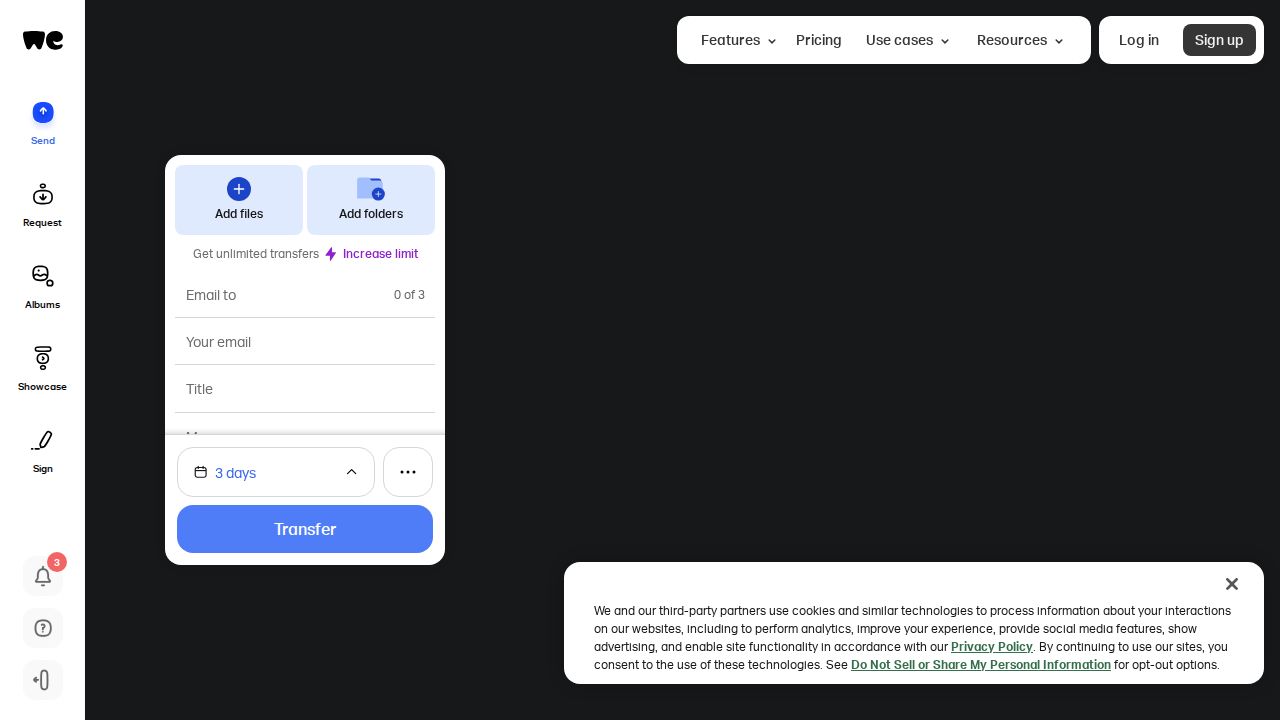
Best for quick sends with no account WeTransfer is the name most people know, and recipients never need an account. The free plan is now tight, with up to 10 transfers and 3 GB in total per 30 days. Ultimate removes the transfer count limit and adds passwords, custom expiry and branded pages.
What stands out
- Send without creating an account
- Ultimate allows unlimited transfers with password protection and custom expiry
- Default account storage of 2 TB on paid plans
- Teams plan adds shared workspaces and admin tools
Keep in mind
- Free plan is limited to 10 transfers and 3 GB per 30 days
- Starter also caps you at 10 transfers per 30 days
- Prices did not appear on the pricing page we checked
 Filemail
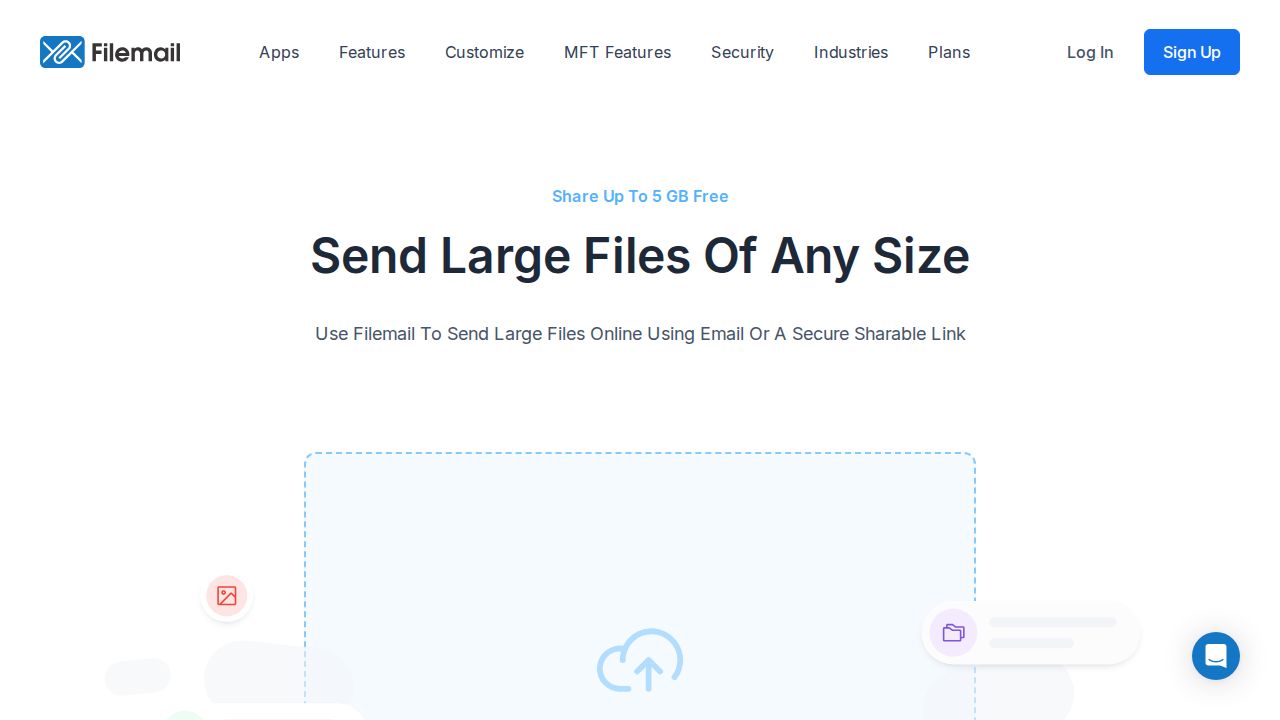
Best for businesses sending files of any size Filemail suits people who send large files often and want them to stay available. The Pro plan raises the limit to 250 GB per transfer with 1 TB of storage and permanent file retention, and Business allows files of any size. Recipients can download without registering or installing anything.
What stands out
- Free transfers up to 5 GB
- Pro sends up to 250 GB and keeps files permanently
- Business has no transfer size limit and 1 TB per user
- 7-day free trial on paid plans
Keep in mind
- Prices did not appear on the pricing page we checked
- Personal plan is still capped at 5 GB per transfer
 MASV
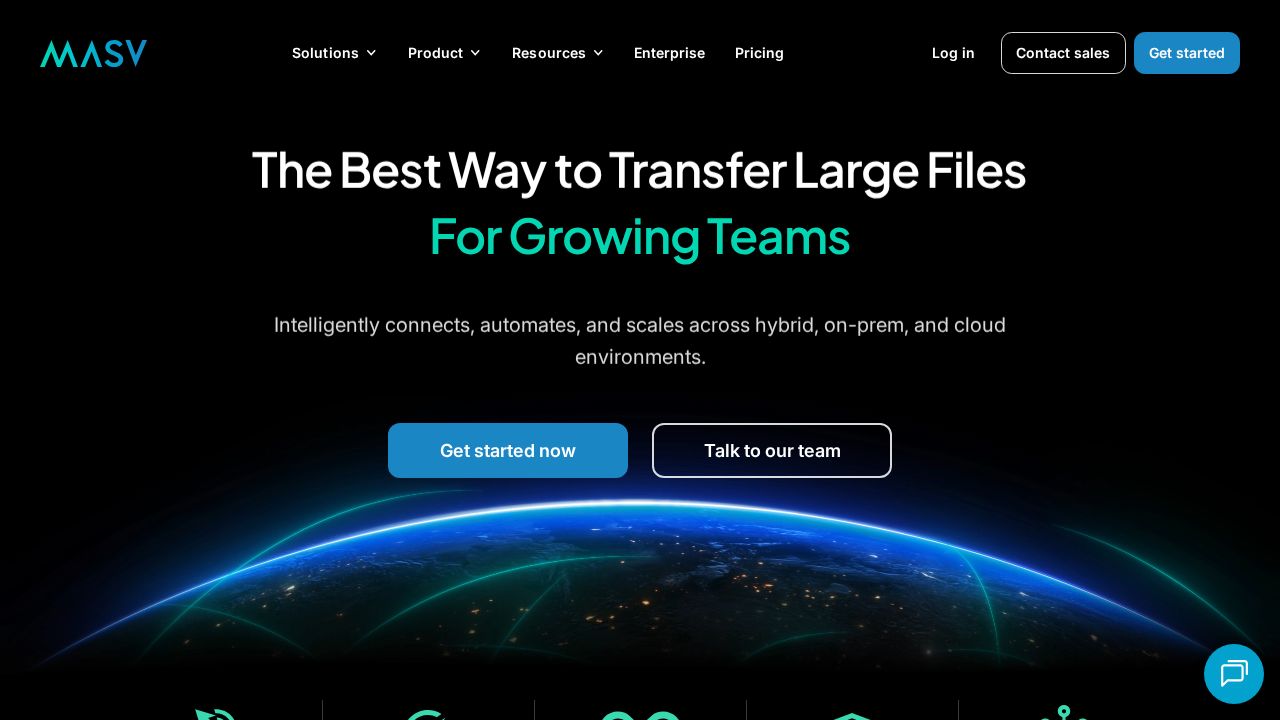
Best for very large video and media transfers MASV is aimed at video and media professionals who move hundreds of gigabytes at a time. You pay $0.25 per GB after a free 15 GB each month, so a light month can cost nothing. Subscriptions lower the per-GB rate for steady heavy use.
What stands out
- 15 GB of free transfer each month
- Pay only for what you send, at $0.25 per GB
- Subscriptions from $58 a month for 250 GB
- Lists SOC 2 Type II, ISO 27001 and HIPAA compliance
Keep in mind
- A credit card is needed even for the free allowance, with a $10 temporary hold
- Files are stored free for only 5 days, then $0.07 per GB a month
- Subscriptions require a 12-month commitment
How we chose
We compared each company’s published plans on these points:
- Transfer size. The largest file or folder you can send on free and paid plans.
- Recipient experience. Whether people can download without an account.
- Link lifetime. How long files stay available before they expire.
- Cost. Flat subscriptions versus paying per gigabyte.
This list is based on published plans and pricing, not lab testing. Where a company did not publish a price on the day we checked, we wrote “See site” instead of guessing.
Transfer service or cloud storage link?
A transfer service is best when you send a file once and do not need to keep it online. A shared cloud storage link is better when:
- The recipient needs the latest version of a file that keeps changing
- You want to keep the file long term
- Several people will add files to the same folder
Tips for sending large files
- Zip a folder of many small files into one archive so it uploads and downloads more reliably.
- Use a wired connection or strong Wi-Fi for uploads over 10 GB.
- Add a password for anything private and send the password by a different channel, such as a text message.
- Check the expiry date and tell the recipient when the link will stop working.
- Keep your original copy until the recipient confirms the download worked.
Frequently asked questions
What is the best free way to send a large file?
Filemail's free tier sends up to 5 GB per transfer, and Smash and Dropbox Basic send up to 2 GB. MASV gives 15 GB of free transfer each month but asks for a credit card.
Do recipients need an account to download?
No. Smash, Dropbox Transfer, WeTransfer, Filemail and MASV all let recipients download from a link without signing up.
How long do download links last?
It depends on the plan. Free Smash links last up to 7 days and Pro up to 30 days. Dropbox Plus links expire after 7 days, while Filemail Pro keeps files permanently.
Can I password-protect a transfer?
Yes on most services. Smash includes passwords on every plan, WeTransfer offers them from Ultimate up, and Dropbox adds them on Standard and higher business plans.
Sources
How we wrote this
This list is based on each company's published plans, prices and feature pages, not on hands-on lab testing. Facts were last checked on November 17, 2026. See our editorial policy.