No company paid to be on this list. Prices were checked on November 17, 2026 and can change. How we make money.
At a glance
| # | Product | Best for | Starting price | Free option |
|---|---|---|---|---|
| 1 | A free app with F-Droid builds | $1.65/mo | Free plan | |
| 2 | Android users who live in Chrome | Free | Built in | |
| 3 | A paid app that fills 2FA codes too | $2.99/mo | 14-day trial | |
| 4 | Email aliases with an open-source app | $1.99/mo | Free plan | |
| 5 | Older phones running Android 9 | See site | Free plan (1 device) | |
| 6 | Shared folders for a household | See site | 30-day trial |
The list
 Bitwarden
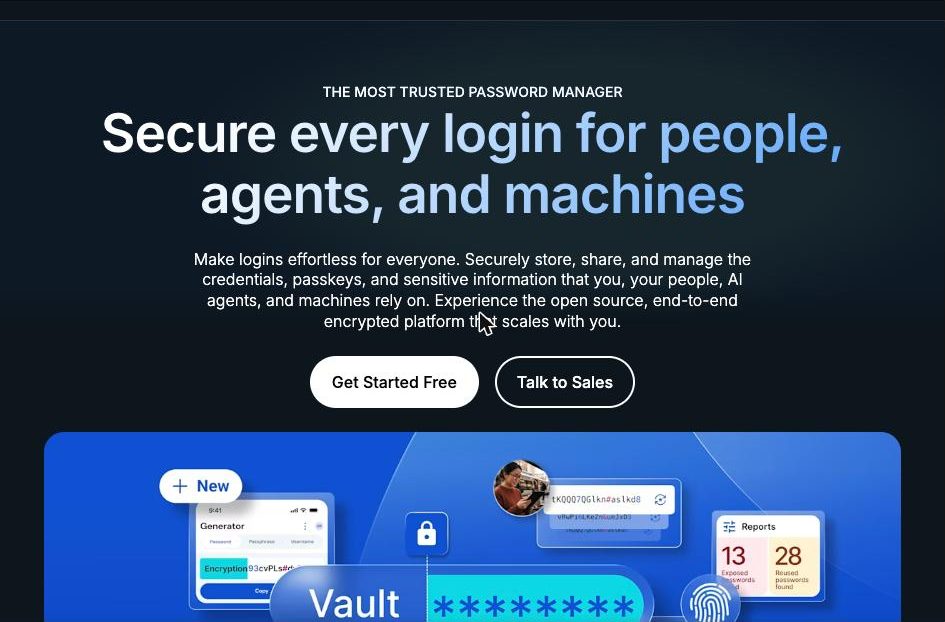
Best for a free app with F-Droid builds Bitwarden is the strongest free pick for Android. It works as an Android autofill service with either inline keyboard suggestions on Android 11 or later or a popup on Android 8 or later. It can manage passkeys, unlocks with fingerprint or face, and is available from both Google Play and F-Droid.
What stands out
- Free plan with unlimited passwords and unlimited devices
- Inline autofill in the keyboard on Android 11+, or popup autofill on Android 8+
- Fingerprint or face unlock using a Class 3 biometric
- Available on Google Play and F-Droid
Keep in mind
- The F-Droid build has no push notifications, so you sync the vault manually
- Android passkeys in Bitwarden work as a primary login only, not as a second factor
- The built-in authenticator needs Premium ($19.80 a year)
 Google Password Manager
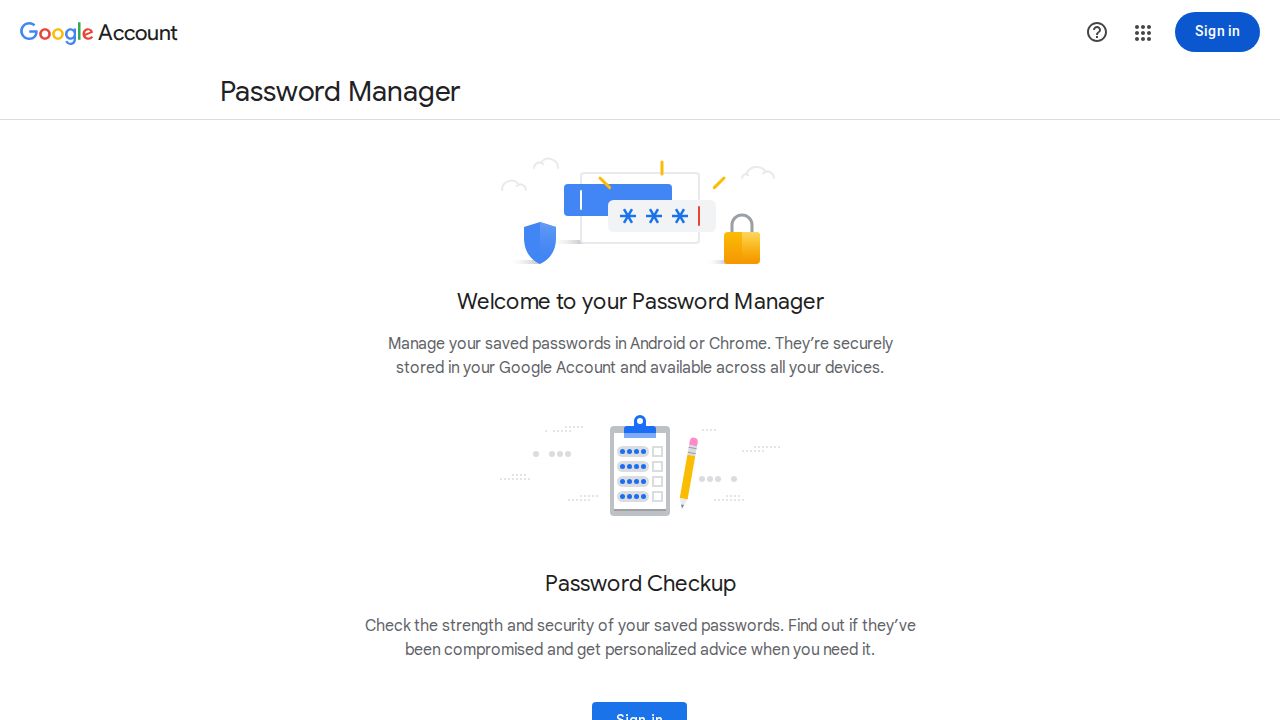
Best for android users who live in Chrome Google Password Manager comes with your Google Account, so many Android owners already use it. It saves passwords and passkeys, fills them in sites and apps once Google is set as the autofill provider, and syncs to Chrome on your other devices. It can also warn you when a saved password appears online.
What stands out
- No extra cost; included with a Google Account
- Saves and fills passwords and passkeys
- Syncs through Chrome and passwords.google.com
- Alerts if saved passwords are published online
Keep in mind
- Tied to Google's ecosystem and Chrome for use on other devices
- Fewer sharing and vault options than dedicated managers
 1Password
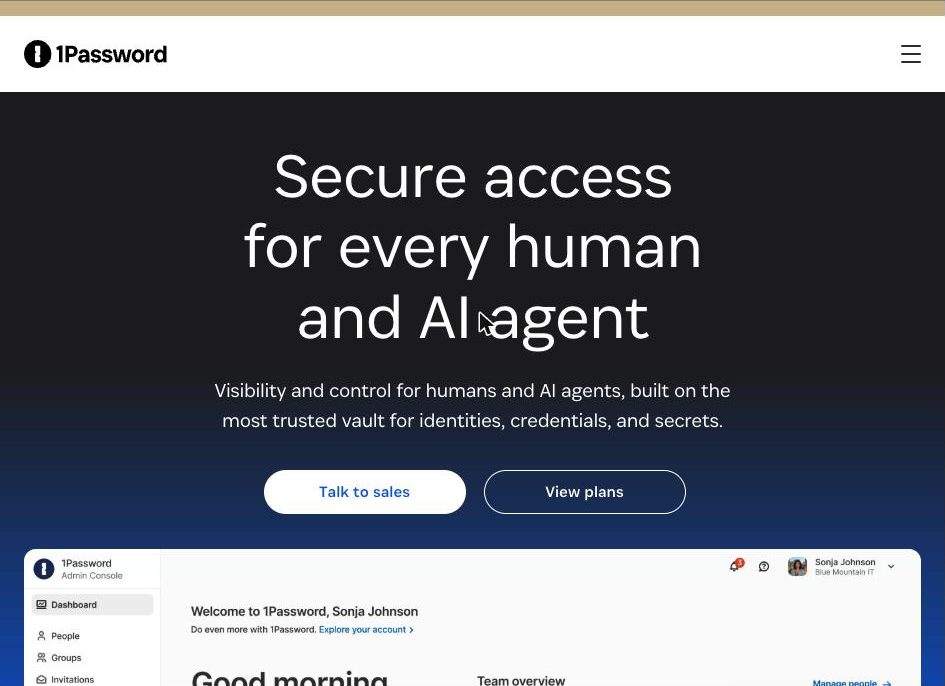
Best for a paid app that fills 2FA codes too 1Password is the best paid option on Android. It fills logins and two-factor codes in Chrome, Firefox, Samsung Internet and Edge, supports passkeys on Android 14 or newer and runs on phones and tablets. Watchtower warns you about breached or weak passwords. There is no free plan.
What stands out
- Fills logins and 2FA codes in Chrome, Firefox, Samsung Internet and Edge
- Passkey support on Android 14 or newer
- Watchtower alerts for breaches and weak passwords
- Share items with expiring links
Keep in mind
- No free plan
- Requires Android 12 or newer
- $2.99 a month is a first-year rate billed annually; it rises to $3.99
 Proton Pass
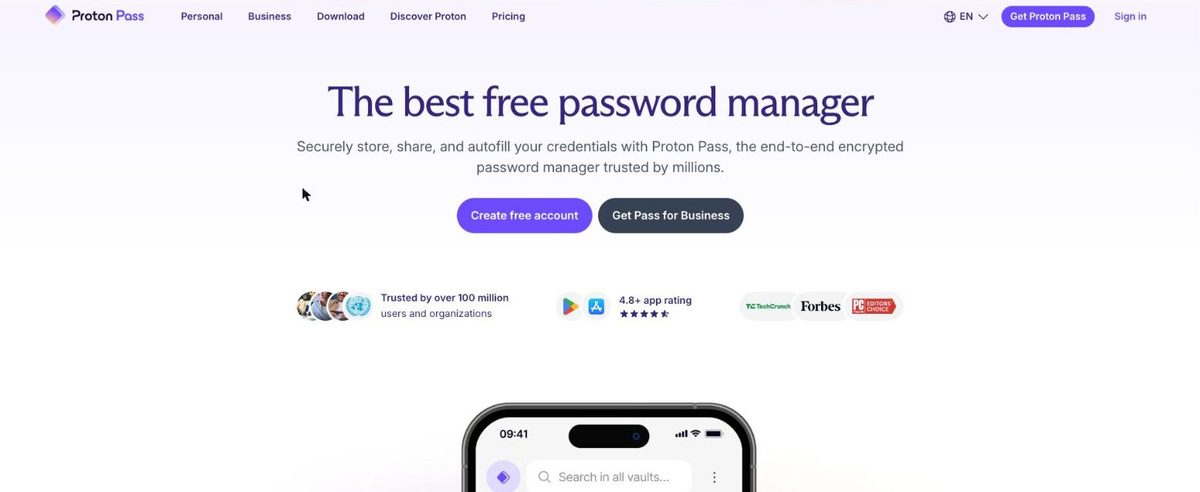
Best for email aliases with an open-source app Proton Pass is a good fit for privacy-minded Android users. Its open-source Android app is on Google Play and F-Droid, fills passwords, cards and identity details in any app or browser, and the free plan includes 10 hide-my-email aliases. Biometric unlock on mobile is available on free and paid plans.
What stands out
- Free plan with unlimited logins, unlimited devices and 10 aliases
- Open-source Android app, also on F-Droid
- Autofill in any app or browser on Android
- Biometric unlock on mobile on free and paid plans
Keep in mind
- Integrated 2FA codes and file attachments need a paid plan
- Pass Plus is $23.88 for the first 12 months, then $35.88 a year
 NordPass
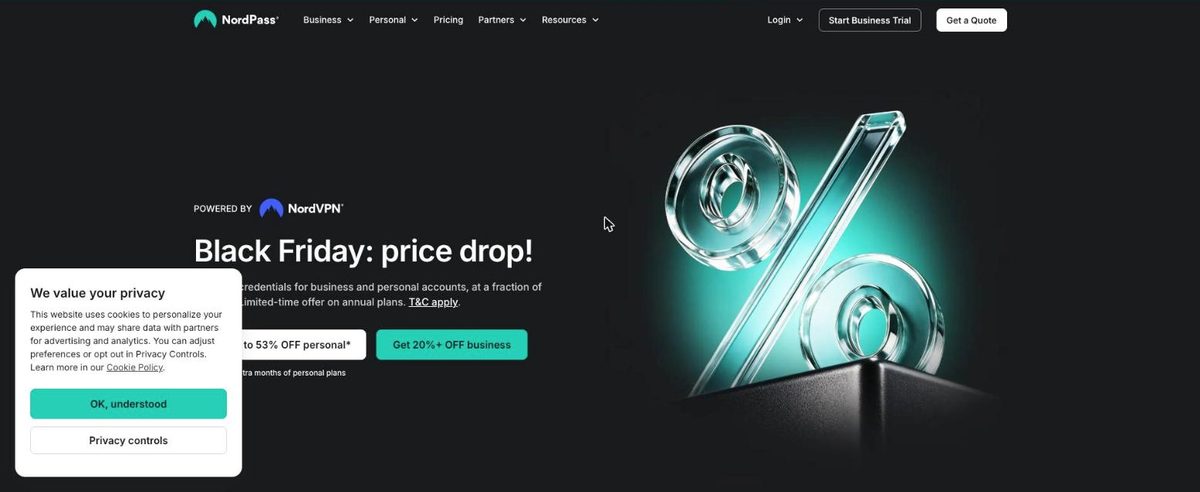
Best for older phones running Android 9 NordPass supports phones back to Android 9, which helps if you have an older device. The app autofills logins, generates passwords and stores passkeys. The free plan is lifetime but does not include access on multiple devices, so a phone-plus-laptop setup needs Premium.
What stands out
- Supports Android 9.0 or newer
- Autofill and password generator
- Stores passkeys alongside passwords and cards
- Family plan covers 6 user accounts
Keep in mind
- Free plan does not include access on multiple devices
- Prices did not load on the plans page when we checked
 Keeper
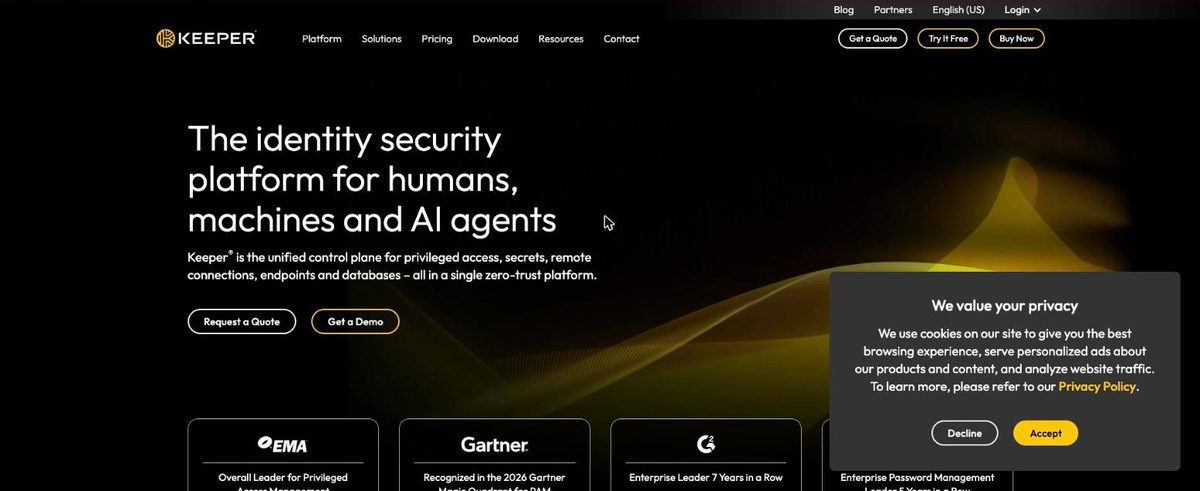
Best for shared folders for a household Keeper's Android app uses KeeperFill to fill logins, passkeys and payment cards in apps and mobile browsers. The Personal plan lists fingerprint login, unlimited storage and unlimited devices. The Family plan adds 5 private vaults, shared folders and 10 GB of file storage.
What stands out
- KeeperFill works in Android apps and browsers, including passkeys
- Fingerprint login listed on the Personal plan
- Family plan with 5 private vaults and unlimited shared folders
Keep in mind
- No free plan, only a 30-day trial
- The pricing page did not show a price when we checked
How we chose
We compared each company’s published Android details on these points:
- Autofill. Whether the app works as an Android autofill service in apps and browsers.
- Passkeys. Whether passkeys are supported and which Android version that needs.
- Install options. Google Play only, or also F-Droid for people who avoid Google services.
- Price. Free plan limits and the lowest paid personal plan, including renewal.
This list is based on published features and pricing, not lab testing. Where a company’s pricing page did not show a price, we write “See site” instead of guessing.
Built-in or dedicated manager?
Google Password Manager is fine if:
- You use Chrome on every device
- You do not need to share vaults with family
- You only want passwords and passkeys saved
Pick a dedicated manager if:
- You use Firefox, Samsung Internet or several browsers
- You want email aliases, secure notes or file storage
- You want a family plan with separate private vaults
Check before you install
- Find your Android version in Settings, under About phone.
- Compare it with the app’s minimum version (Android 9 for NordPass, Android 12 for 1Password).
- If you want passkeys in 1Password, confirm you are on Android 14 or newer.
- After setup, turn off the previous autofill service so you only get one prompt.
Frequently asked questions
Is Google Password Manager safe enough on Android?
It is a reasonable default if you mostly use Chrome. It saves passwords and passkeys and warns you when a saved password is found online. Dedicated managers add things like email aliases, family vaults and wider browser support.
How do I set a different autofill app on Android?
Install the password manager, then choose it as your autofill service in the app's own settings or in Android's autofill settings. Bitwarden, for example, links you to the Autofill services screen from its Settings.
Can I get a password manager without Google Play?
Yes. Bitwarden and Proton Pass both publish their Android apps on F-Droid. Bitwarden notes that its F-Droid build needs manual syncing.
Which Android password managers support passkeys?
All six list passkey support. 1Password says passkeys need Android 14 or newer, so check your Android version first.
Sources
- Bitwarden pricing
- Bitwarden autofill on Android
- Bitwarden unlock with biometrics
- Bitwarden downloads
- Google Password Manager help
- 1Password for Android
- 1Password personal pricing
- Proton Pass for Android
- Proton Pass pricing
- Proton Pass macOS setup (biometric plan note)
- NordPass for Android
- NordPass supported operating systems
- Keeper autofill
- Keeper personal and family pricing
How we wrote this
This list is based on each company's published plans, prices and feature pages, not on hands-on lab testing. Facts were last checked on November 17, 2026. See our editorial policy.