No company paid to be on this list. Prices were checked on November 17, 2026 and can change. How we make money.
At a glance
| # | Product | Best for | Starting price | Free option |
|---|---|---|---|---|
| 1 | Free controls on Android and Chromebook | Free | Free | |
| 2 | Free controls on iPhone, iPad and Mac | Free | Free | |
| 3 | Windows PCs and Xbox consoles | Free | Free | |
| 4 | A free tier that works across platforms | $59.95/yr | Free plan (1 device) | |
| 5 | Free app and website blocking | See site | Free version | |
| 6 | Free family location sharing | $9.99/mo | Free plan |
The list
 Google Family Link
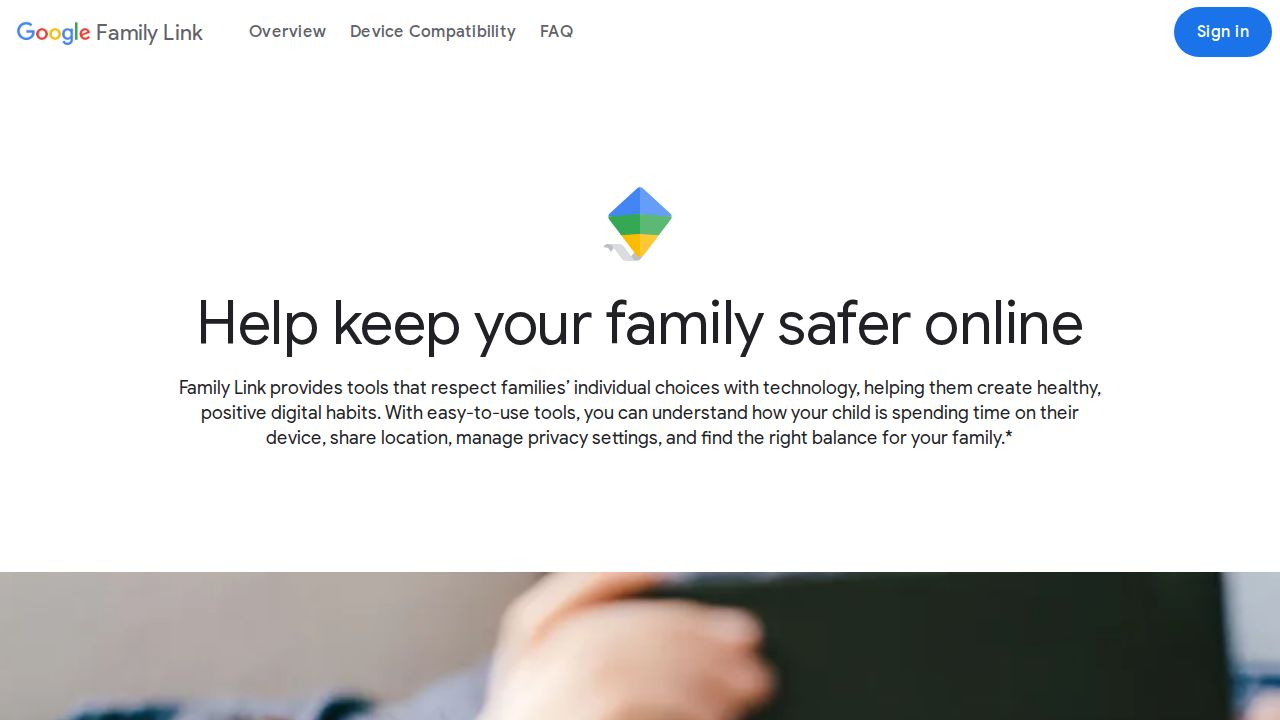
Best for free controls on Android and Chromebook Family Link gives Android families most of what paid apps charge for. Parents can set a daily screen time amount, schedule downtime, limit or block single apps, approve new installs and see where the device is. Supervision can also be set up online if the parent has no smartphone.
What stands out
- Daily screen time limits and scheduled downtime
- Per-app time limits and app blocking
- Approval required before new apps are installed
- Location on a map, with arrival and departure alerts
Keep in mind
- On a child's iPhone, only YouTube and Google Search settings apply
- Google says its filters can miss explicit content
 Apple Screen Time
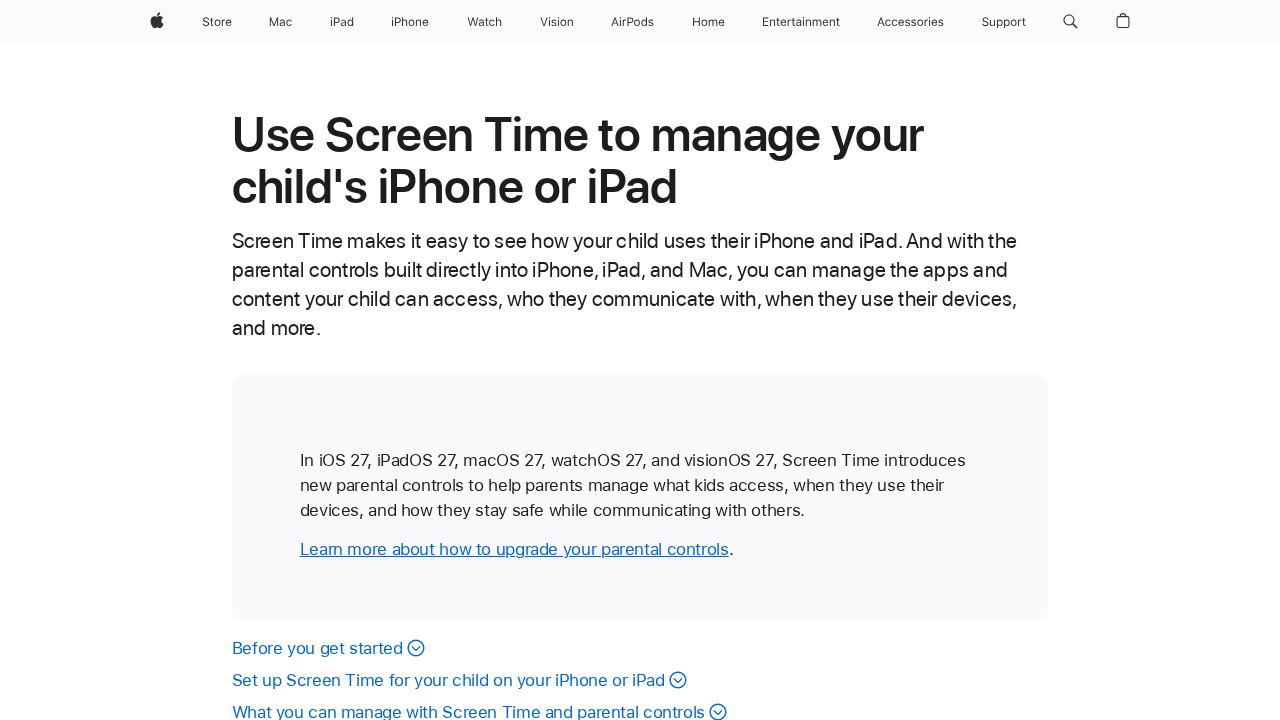
Best for free controls on iPhone, iPad and Mac Screen Time comes with every iPhone, iPad and Mac, so there is nothing to install. With Family Sharing, a parent manages a child's device from their own. It covers time allowances, schedules, app and website approvals, contact limits and age ratings for content in apps such as Music, Apple TV and Books.
What stands out
- Time allowances by app category, with separate weekday and weekend schedules
- Ask to Buy and Ask to Browse approval requests
- Controls for who a child can contact in Messages, FaceTime and Phone
- Limit Adult Websites is on by default for children under 18
Keep in mind
- Requires Family Sharing with a Child Account that is not shared
- Apple says the newest Screen Time experience needs iOS 27 or the matching software on other devices
 Microsoft Family Safety
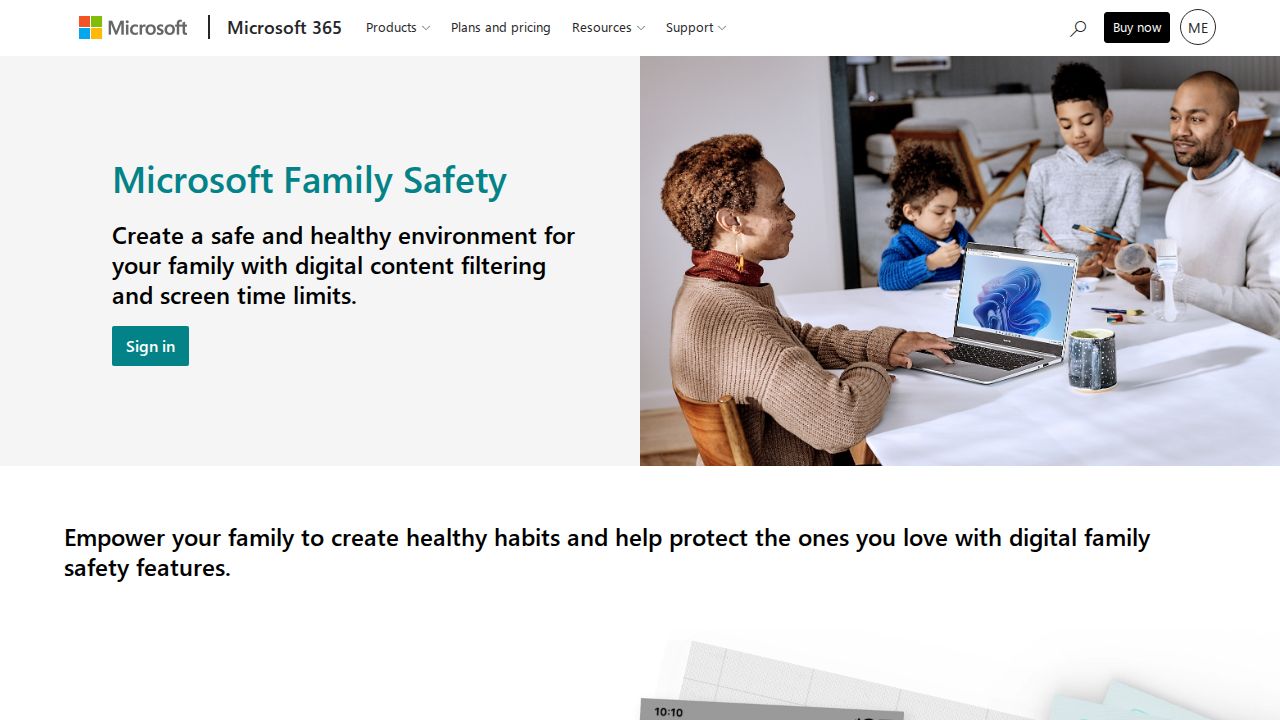
Best for windows PCs and Xbox consoles Family Safety is the free choice for a household built around Windows and Xbox. It sets screen time limits for devices, apps and games, and filters apps, games, web and search. It supports Windows 10 and 11, Xbox One and Xbox Series X|S, with app and game limits on Android.
What stands out
- Device screen time limits on Windows and Xbox
- App and game limits on Windows, Xbox and Android
- Screen time requests and activity summaries
- Content filters for apps, games, web and search
Keep in mind
- Web and search filters only work in Microsoft Edge, and other common browsers are blocked
- No enforced controls are listed for a child's iPhone
- Location alerts need a Microsoft 365 Family subscription, and Microsoft says location features are going away
 Qustodio
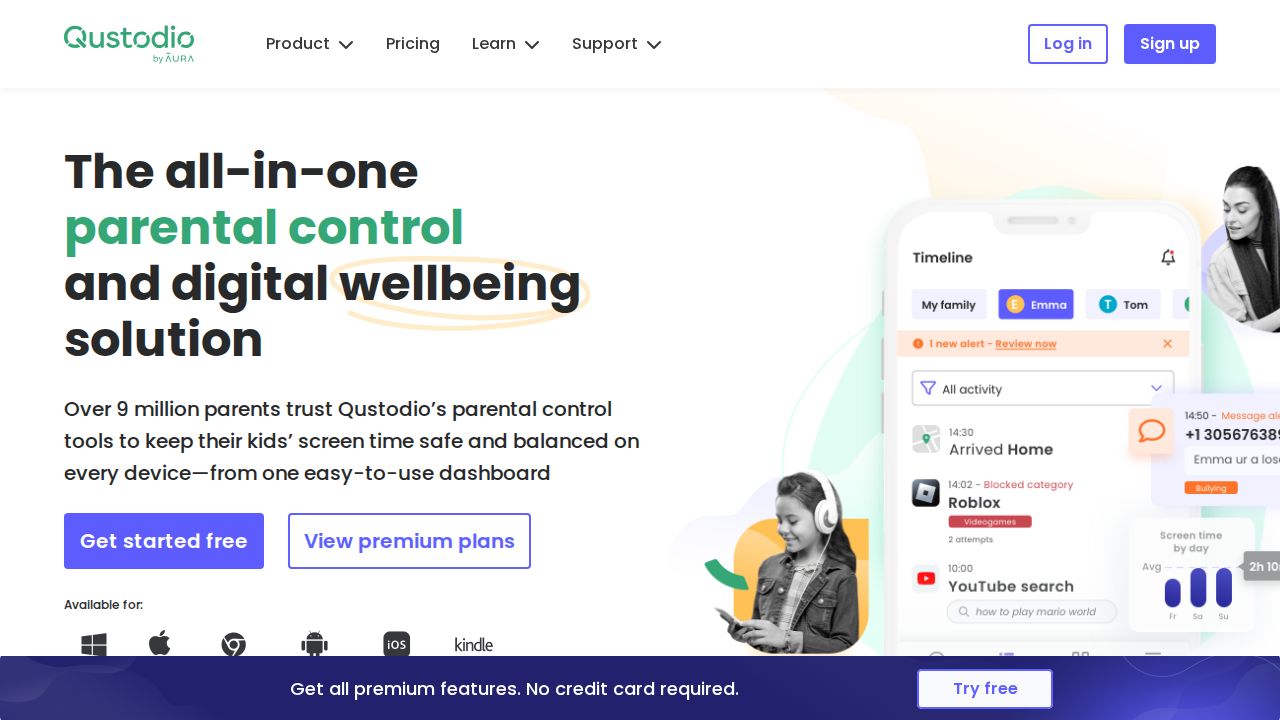
Best for a free tier that works across platforms Qustodio is a paid app with a free plan that protects a single device with basic features. That makes it useful for a one-child, one-device home, or as a way to see the dashboard before paying. Its plans page lists Windows, Mac, Chromebook, Android, iOS and Kindle.
What stands out
- Free plan for one device
- Runs on Windows, Mac, Chromebook, Android, iOS and Kindle
- Paid plans come with a 30-day money-back guarantee
Keep in mind
- More than one device needs a paid plan, from $59.95 a year for up to 5 devices
- The plans page does not list exactly which features the free plan includes
 Kaspersky Safe Kids
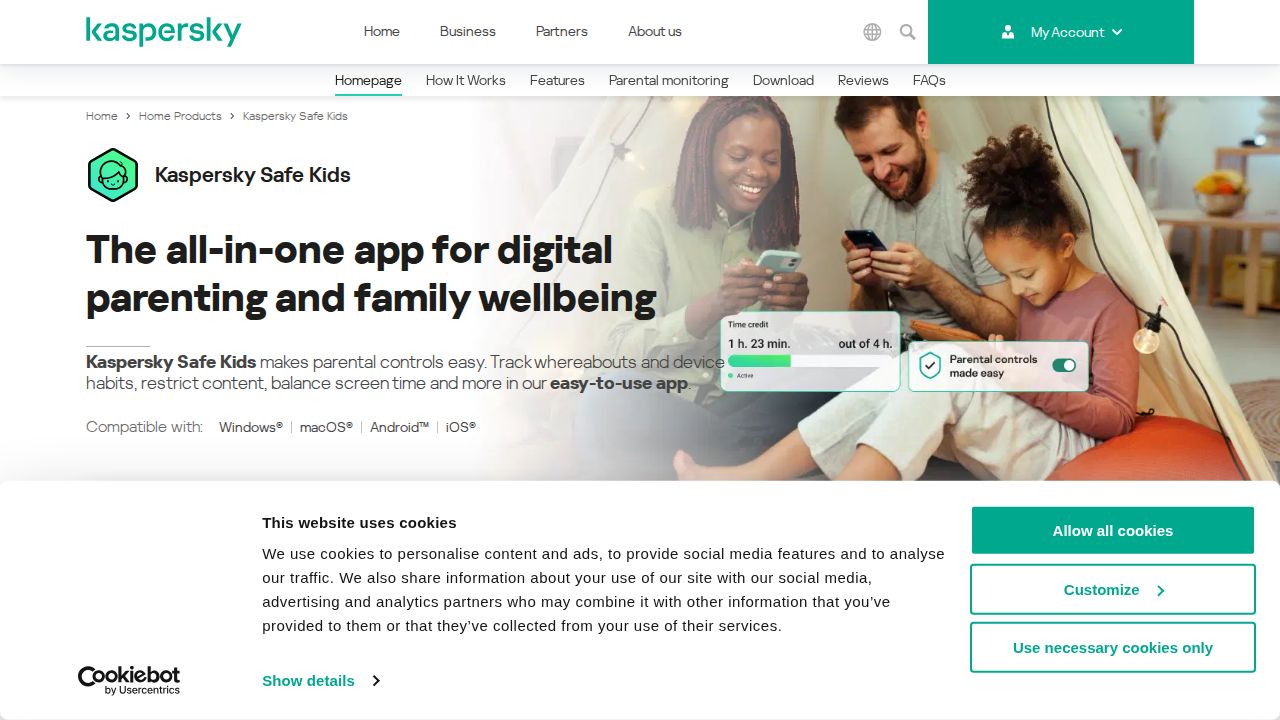
Best for free app and website blocking Kaspersky Safe Kids has a free version alongside its premium one. Kaspersky's help pages for the Windows app say the free version can limit computer time, turn on Safe Search and block apps and websites by category or by name. Children can also request more time or access.
What stands out
- Free version blocks app and website categories, and specific apps and sites
- Free version limits device time and enforces Safe Search
- Children can request extra time or access to blocked items
- Available for Windows, macOS, Android and iOS
Keep in mind
- Reports, weekly schedules and per-app time limits need premium
- Location tracking and real-time alerts need premium
- A standalone premium price was not shown on the US page
 Life360
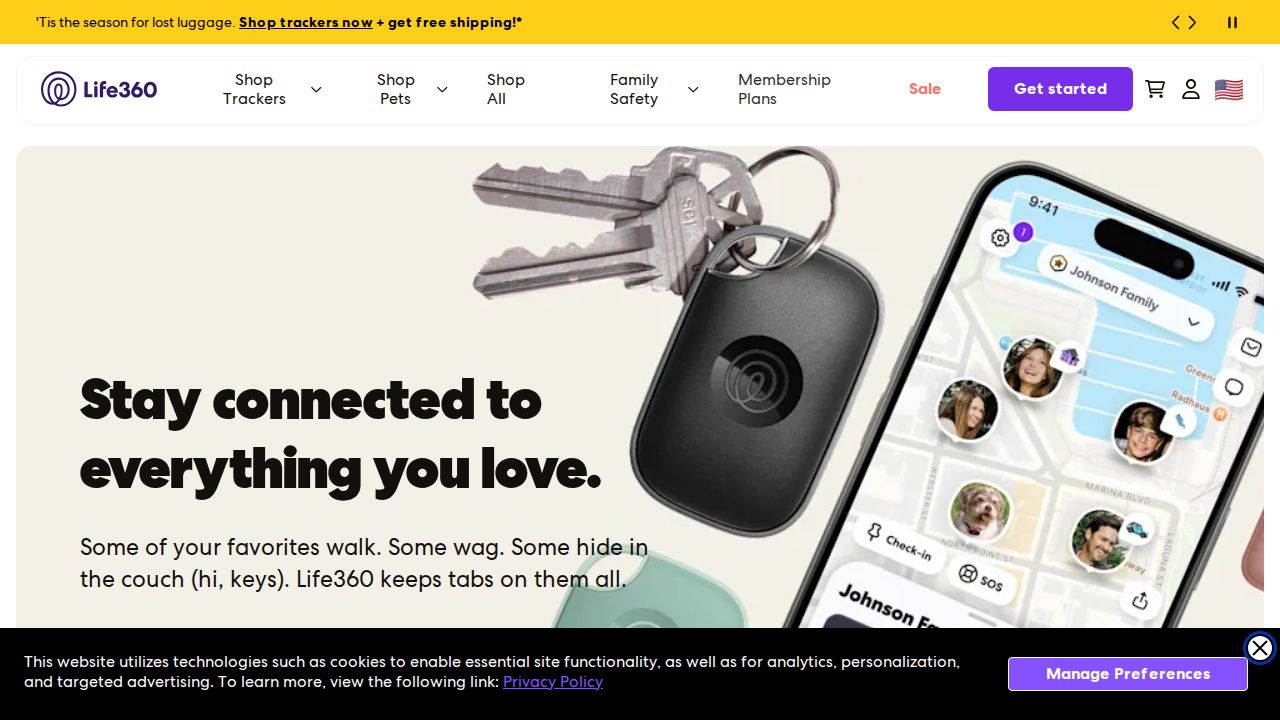
Best for free family location sharing Life360 is not a content filter. It is a location sharing app for the whole family, and its free plan is enough for basic check-ins. The free plan includes location tracking, a Family Driving Summary, 2 days of location history and alerts for 2 places such as home and school.
What stands out
- Free plan includes location tracking and a Family Driving Summary
- 2 days of location history on the free plan
- Place alerts for 2 places on the free plan
Keep in mind
- Longer history and more place alerts need a paid plan, from $9.99 a month
- No web filtering or screen time limits
How we chose
We only listed tools with a free option that a family can keep using, not a short trial. We compared:
- What the free version does. Time limits, content filters, app approvals and location.
- What it leaves out. Device caps and features held back for paid plans.
- Which devices it manages. Built-in tools mostly cover their own platform.
- Who makes it. Device makers and established security or family safety companies only.
We did not lab test these tools. The details come from each company’s published pages. Where a price was not published, we write “See site”.
Match the free tool to the device
- iPhone, iPad or Mac: Apple Screen Time
- Android phone or Chromebook: Google Family Link
- Windows PC or Xbox: Microsoft Family Safety
- One device of any kind: Qustodio’s free plan
- Location check-ins only: Life360’s free plan
A family with an iPad, an Android phone and an Xbox may end up using three free tools. That is fine. It takes a little longer to set up but costs nothing.
When free stops being enough
Consider a paid plan if:
- You want one dashboard for several platforms
- You want weekly reports instead of checking each device
- You need web filtering in every browser, not only one
- You have more children and devices than a free tier covers
Whichever tool you use, set it up with your child in the room. Explain what you can see and what you cannot. Kids are more likely to respect limits they understand.
Frequently asked questions
What is the best free parental control app?
It depends on the device. Google Family Link fits Android and Chromebook, Apple Screen Time fits iPhone, iPad and Mac, and Microsoft Family Safety fits Windows and Xbox.
Is Google Family Link really free?
Yes. Family Link is a free Google tool. Parents can install the app from Google Play or the App Store, or set up supervision online.
Can I use Google Family Link on my child's iPhone?
Only partly. Google says that on iOS or in a web browser, only YouTube and Google Search settings apply. App management and screen time limits do not carry over.
What do free plans from paid apps leave out?
Usually devices or detail. Qustodio's free plan covers one device. Kaspersky Safe Kids keeps reports, schedules, location tracking and real-time alerts for premium.
Are free parental controls enough for a teenager?
Often, yes. Time limits, app approvals and content ratings cover the basics. With teens, agree on the rules together and loosen them as trust grows.
Sources
- Google Family Link
- Google Family Link FAQ
- Apple Support: Use Screen Time to manage your child's iPhone or iPad
- Microsoft Family Safety
- Microsoft Support: Saved places and location alerts
- Qustodio Premium plans
- Kaspersky Safe Kids
- Kaspersky Safe Kids FAQ
- Kaspersky Support: Compare free and premium versions
- Life360 plans and pricing
How we wrote this
This list is based on each company's published plans, prices and feature pages, not on hands-on lab testing. Facts were last checked on November 17, 2026. See our editorial policy.