No company paid to be on this list. Prices were checked on November 17, 2026 and can change. How we make money.
At a glance
| # | Product | Best for | Starting price | Free option |
|---|---|---|---|---|
| 1 | Free controls made by Google | Free | Free | |
| 2 | Android extras like a panic button | $59.95/yr | Free plan (1 device) | |
| 3 | Flagging bullying and other risks | $14/mo | 7-day trial | |
| 4 | Many kids on newer Android phones | $10/mo | 14-day trial | |
| 5 | App supervision on Android | $49.99/yr | See site | |
| 6 | A free version with app blocking | See site | Free version | |
| 7 | Families already on Windows and Xbox | Free | Free |
The list
 Google Family Link
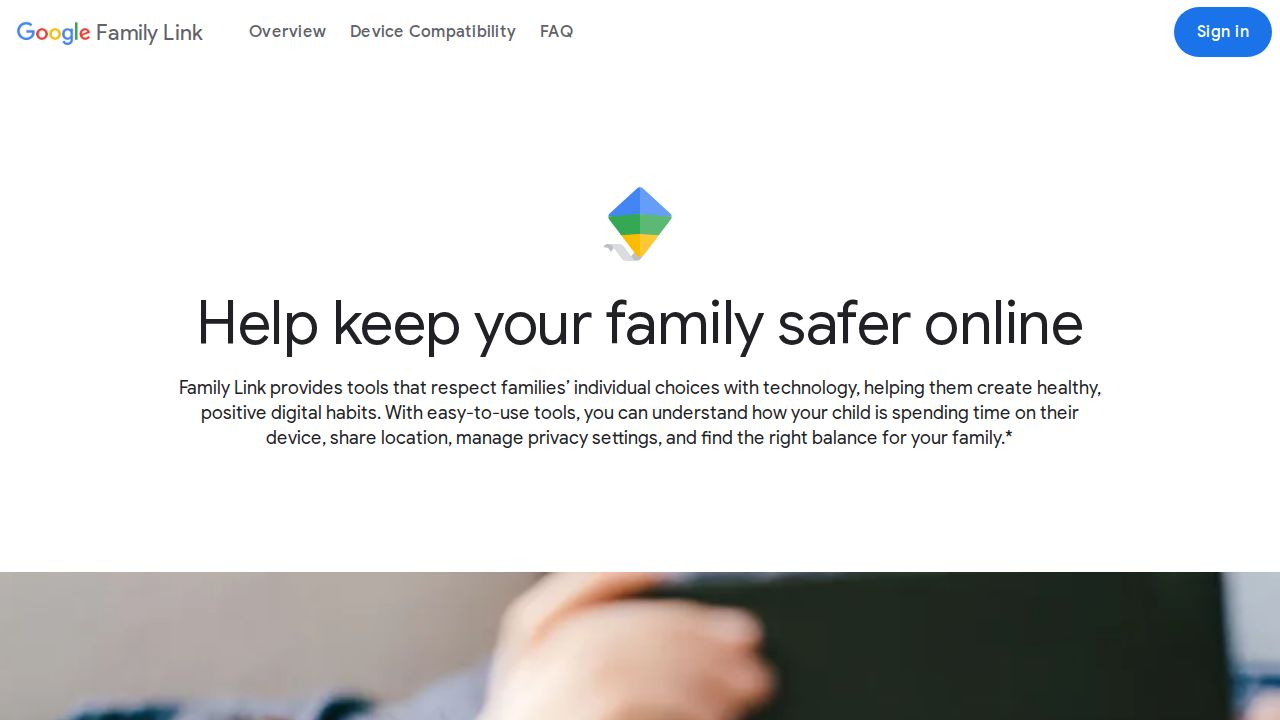
Best for free controls made by Google Family Link is built for Android, so it is the first thing to set up on a child's phone. Parents can set daily screen time, schedule downtime, put time limits on single apps, require approval for new installs and filter Chrome, Play, YouTube and Search. It also shows the phone's location.
What stands out
- Screen time limits, downtime and per-app limits
- New apps need a parent's approval
- Content settings for Chrome, Google Play, YouTube and Search
- Location alerts when a child arrives at or leaves a place
Keep in mind
- Google recommends Android 7.0 or higher on the child's device
- If a child is signed in on several devices, location shows only the most active one
- Google says its filters are not perfect
 Qustodio
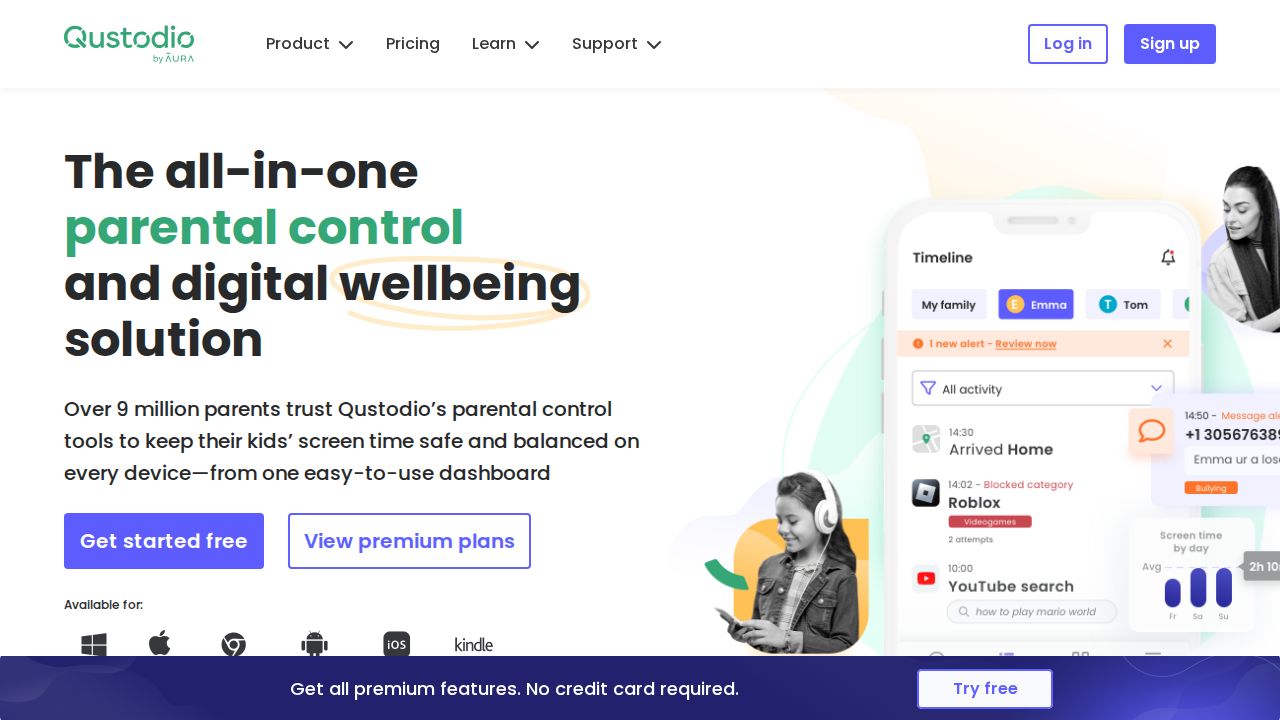
Best for android extras like a panic button Qustodio does more on Android than on iPhone. Its panic button and alerts for Instagram, TikTok, Snapchat and X messages are listed as Android only. Paid plans add web filtering, time limits, app blocking, location and saved places alerts across Android and other platforms.
What stands out
- Panic button on Android
- Instagram, TikTok, Snapchat and X message alerts on Android
- Basic covers 5 devices for $59.95 a year; Complete is $104.95 a year for unlimited family devices
- Free plan for one device and a 30-day money-back guarantee
Keep in mind
- The plans page is not fully clear on which features are Basic versus Complete
- Care Plus support costs $12.99 extra on Basic
 Bark
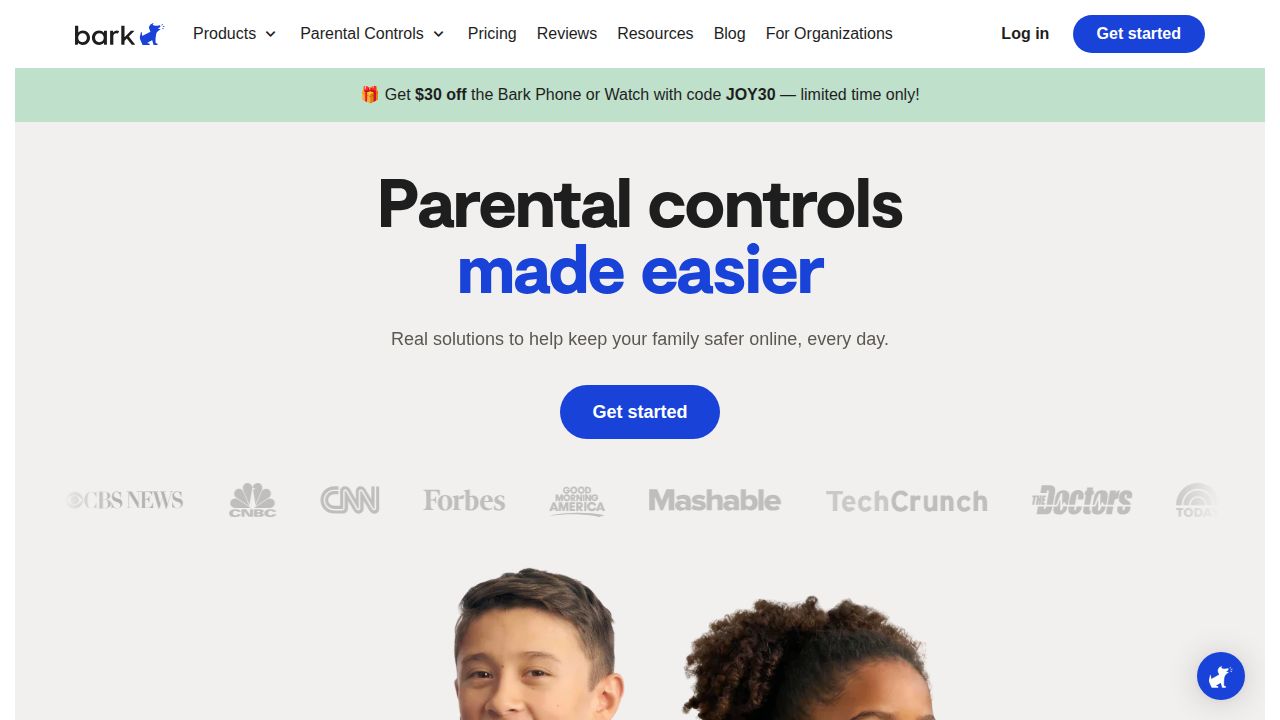
Best for flagging bullying and other risks On Android, Bark needs only the Bark Kids app to monitor content, manage screen time, block sites and track location, with no extra charger. It sends parents alerts on flagged issues such as bullying, self-harm or predators rather than a full feed of messages, which leaves kids more day-to-day privacy.
What stands out
- $14 a month or $99 a year for unlimited kids and devices
- Full content monitoring on Android with the Bark Kids app alone
- Website and app blocking and screen time schedules
- Location tracking and alerts
Keep in mind
- No free plan
- Available only in the U.S., South Africa and Australia
 Aura
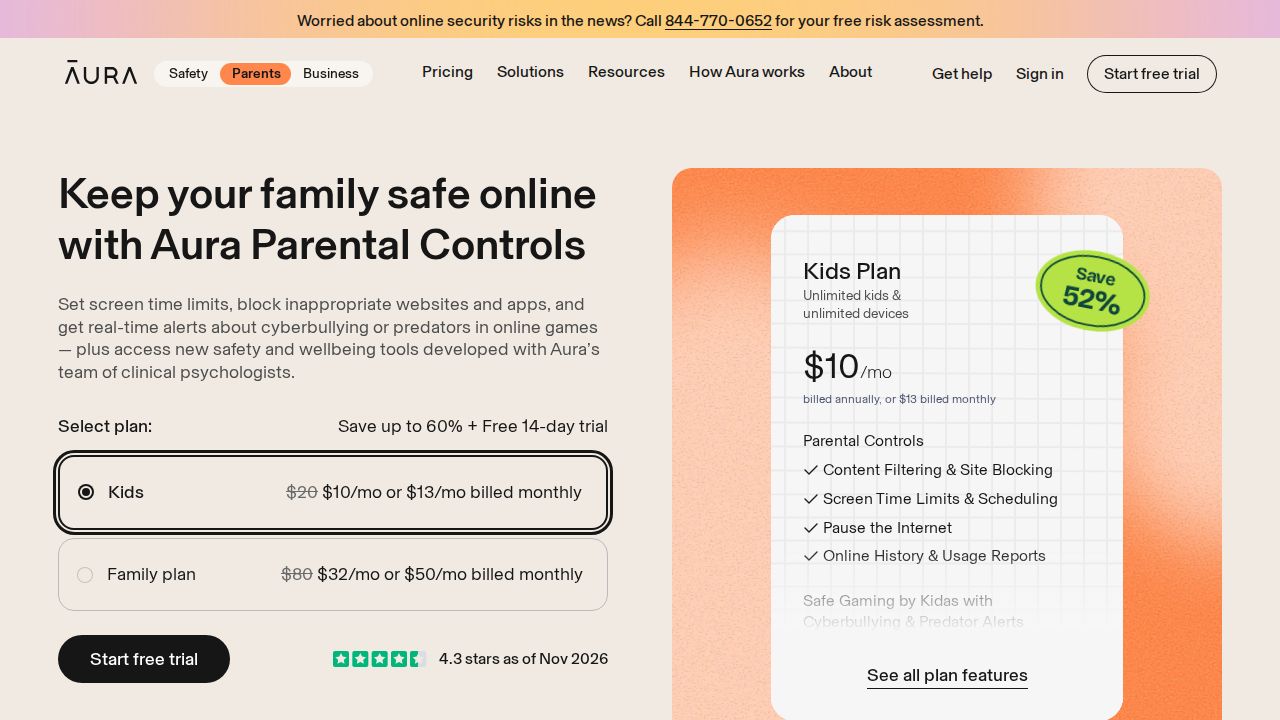
Best for many kids on newer Android phones Aura's Kids plan covers unlimited kids and devices, so one bill handles every Android phone and tablet in the house. It includes content filtering, site blocking, screen time limits and schedules, a pause button for the internet, and history and usage reports. It requires Android 12 or later.
What stands out
- $10 a month billed annually, or $13 billed monthly
- Unlimited kids and devices
- 14-day free trial
- 60-day money-back guarantee on annual plans bought from Aura
Keep in mind
- Requires Android 12 or later
- The $10 rate is shown as a discount from $20
 Norton Family
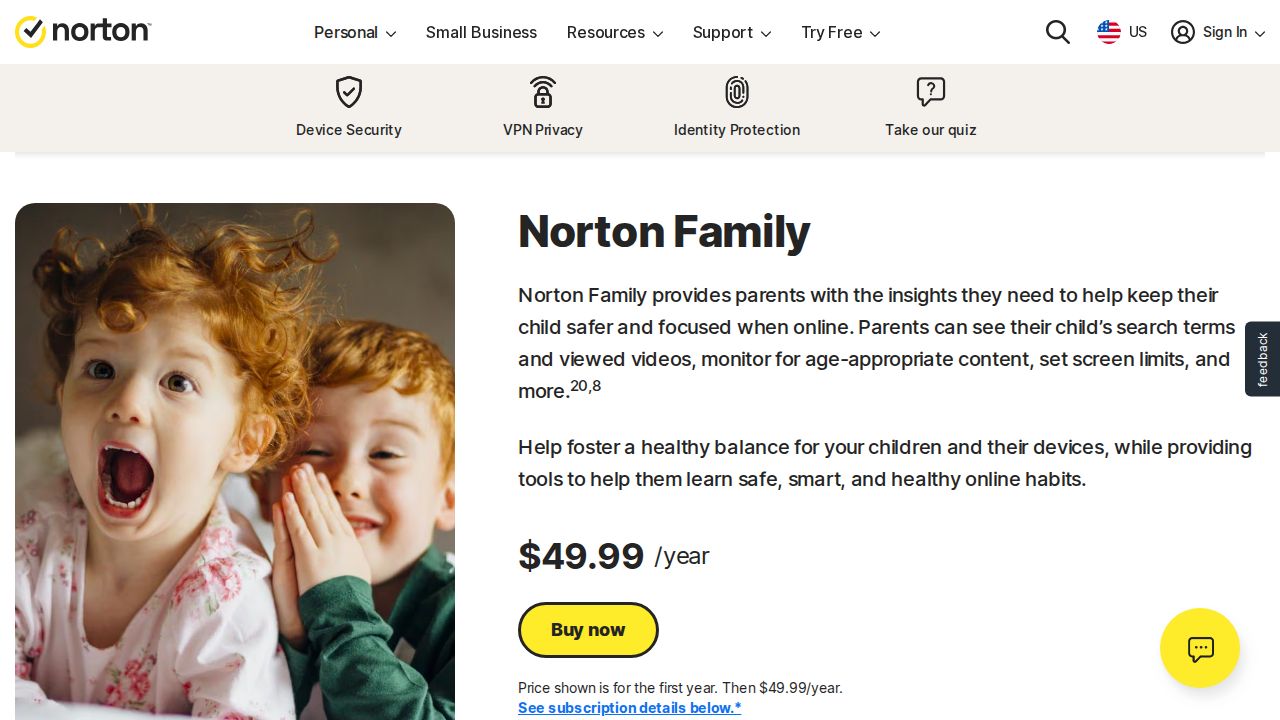
Best for app supervision on Android Norton Family lists its full feature set on Android, including app supervision, which it does not offer on iOS. Parents get web, search and video supervision, time limits, Instant Lock, School Time and location with 30 days of history. It supports Android 8 or later.
What stands out
- $49.99 for the first year
- App supervision lets parents see and manage downloaded apps on Android
- Location supervision with 30 days of history
- School Time mode blocks distracting sites during school hours
Keep in mind
- The renewal price was not shown and may be higher
- A trial length was not stated on the page
 Kaspersky Safe Kids
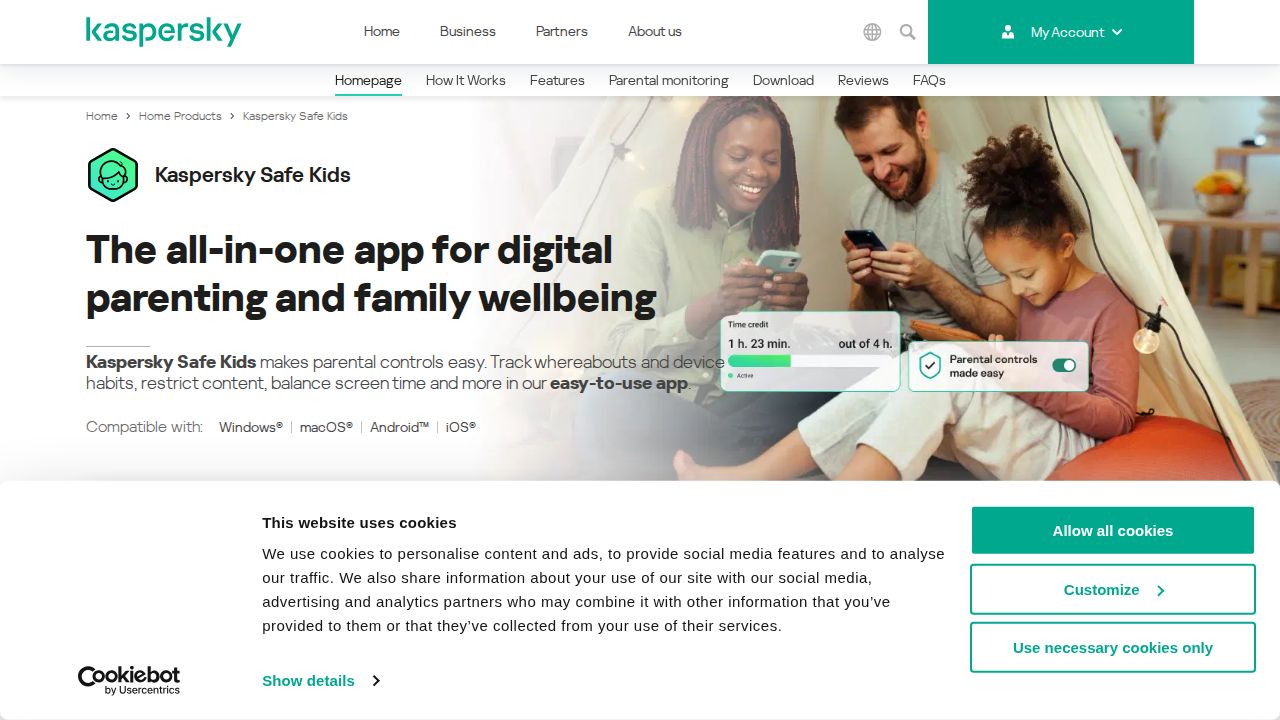
Best for a free version with app blocking Kaspersky Safe Kids has a free version with app management and website blocking. Its premium version adds location tracking, social network monitoring and real-time alerts, with an unlimited number of child profiles. The US page shows it bundled free for a year with a Kaspersky Premium plan.
What stands out
- Free version includes app management and website blocking
- Premium adds GPS location, social network monitoring and real-time alerts
- Premium allows unlimited child profiles
- 30-day money-back guarantee
Keep in mind
- A standalone premium price was not shown on the US page
- Location and real-time alerts need premium
 Microsoft Family Safety
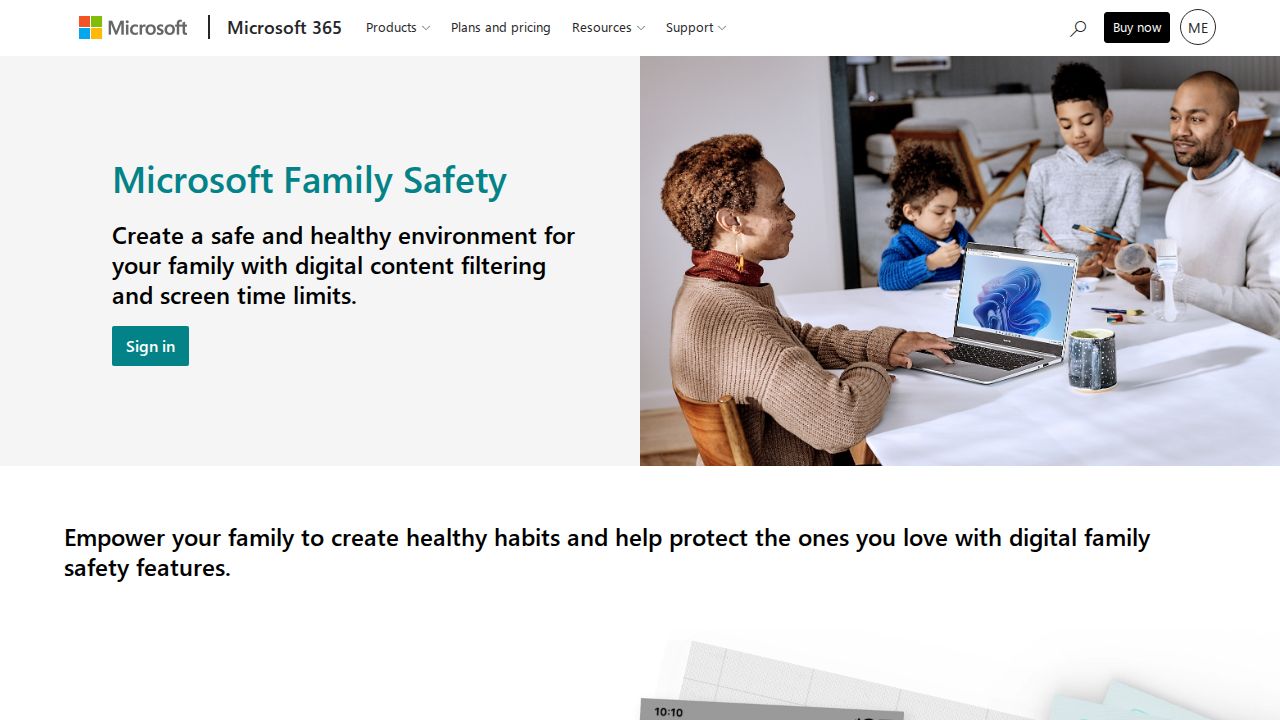
Best for families already on Windows and Xbox Microsoft Family Safety is mostly a Windows and Xbox tool, but it also sets app and game time limits on Android and filters web and search in Microsoft Edge there. It suits a family that already uses it on a PC or console and wants the Android phone in the same app.
What stands out
- App and game screen time limits on Android
- Web and search filters in Microsoft Edge on Android
- Same app manages Windows PCs and Xbox consoles
Keep in mind
- Device-wide screen time limits are listed for Windows and Xbox only, not Android
- Filters work only in Edge, and other common browsers are blocked
- Microsoft says its location features are going away
How we chose
Every app on this list runs on a child’s Android phone or tablet. We compared:
- Android features. What each company lists for Android, including features missing on iPhone.
- Android version required. Older phones may not qualify.
- Cost for the whole family. Price and how many kids or devices one plan covers.
- Ways to try it. Free versions, trials and money-back terms.
These rankings come from published plans and pricing, not lab testing. Where a price was not published, we write “See site”.
Check the phone before you buy
- Open Settings, then About phone, and note the Android version.
- Compare it with the app’s minimum, such as Android 12 for Aura.
- Make sure your child has their own Google Account, not a shared one.
- Set up Google Family Link first, since it is free.
- Add a paid app only for something Family Link does not cover.
Android setup tips
- Install the app with your child, and show them what the parent dashboard shows.
- Turn on Location Accuracy if you use location alerts. Google says arrival and departure alerts turn off without it.
- Keep the child’s phone updated so the controls keep working.
- Revisit limits each school year and loosen them as your child shows they can handle more.
- Give your child a clear way to ask for an app or more time, so they come to you instead of looking for workarounds.
- If you use an alert-based app such as Bark, agree in advance on how you will talk about an alert when one arrives.
Frequently asked questions
Does Android have built-in parental controls?
Yes. Google Family Link is Google's free parental control tool for Android phones, tablets and Chromebooks. It covers screen time, app approvals, content settings and location.
Why do parental control apps do more on Android than iPhone?
Android lets these apps manage more of the device. Qustodio lists a panic button and social app alerts as Android only, and Norton Family offers app supervision on Android but not iOS.
Which Android parental control app covers the most devices?
Bark and Aura cover unlimited kids and devices on one plan. Qustodio Complete covers unlimited family devices, and Basic covers up to 5.
What Android version does my child's phone need?
It varies. Aura needs Android 12 or later, Norton Family needs Android 8 or later, and Google suggests Android 7.0 or higher for a child using Family Link.
Will my child know the app is installed?
They should. These apps are meant to be used openly. Set them up together and explain what alerts or limits you will see.
Sources
- Google Family Link
- Google Family Link FAQ
- Google For Families Help: Find your child's device location
- Qustodio Premium plans
- Bark pricing
- Bark app overview
- Aura parental controls
- Norton Family
- Kaspersky Safe Kids FAQ
- Kaspersky Safe Kids
- Microsoft Family Safety
- Microsoft Support: Saved places and location alerts
How we wrote this
This list is based on each company's published plans, prices and feature pages, not on hands-on lab testing. Facts were last checked on November 17, 2026. See our editorial policy.