No company paid to be on this list. Prices were checked on November 17, 2026 and can change. How we make money.
At a glance
| # | Product | Best for | Starting price | Free option |
|---|---|---|---|---|
| 1 | Heavy OCR work on a desktop | $69/yr | 7-day trial | |
| 2 | OCR plus full PDF editing | $19.99/mo | Free trial | |
| 3 | Free OCR for small files | Free | Free plan (2 MB files) | |
| 4 | Free searchable PDFs in a browser | Free | Free plan (ad-supported) | |
| 5 | Scanning paper with your phone | Free | Free plan | |
| 6 | A free scanner with paid OCR | $39.99/yr | Free plan (no OCR) | |
| 7 | Quick one-off conversions to Word | See site | Free plan (5 files/hr) |
The list
 ABBYY FineReader PDF
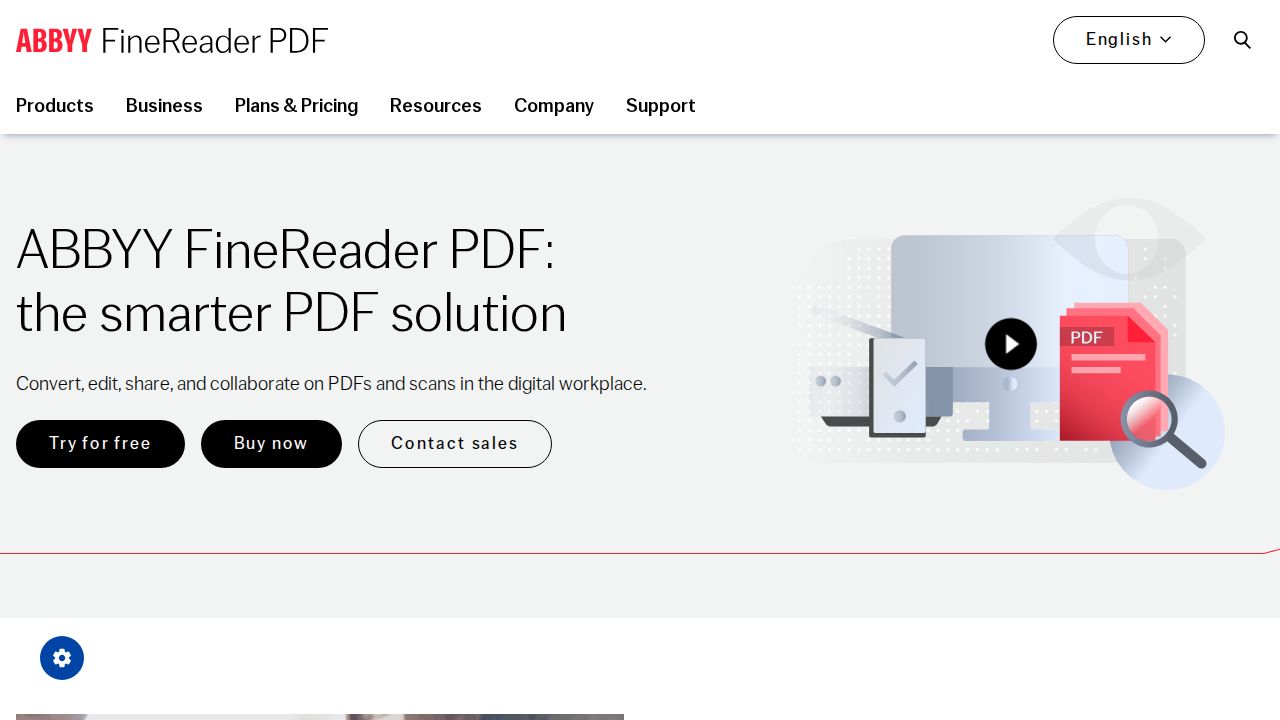
Best for heavy OCR work on a desktop ABBYY FineReader PDF is a specialist OCR program, which makes it the pick for people who digitize documents often. Plans are yearly or 3-year subscriptions, with the Mac version at $69 a year and Windows Standard at $99 a year. Windows Corporate adds document comparison and hot folder automation.
What stands out
- Mac plan from $69 a year; Windows Standard $99 a year or $16 a month
- 7-day free trial with no payment needed
- 3-year plans available at a lower yearly cost
- Corporate plan automates conversion of up to 5,000 pages a month
Keep in mind
- Subscription only, with automatic renewal
- No monthly option for the Mac version
- Each plan covers one standalone license
 Adobe Acrobat Pro
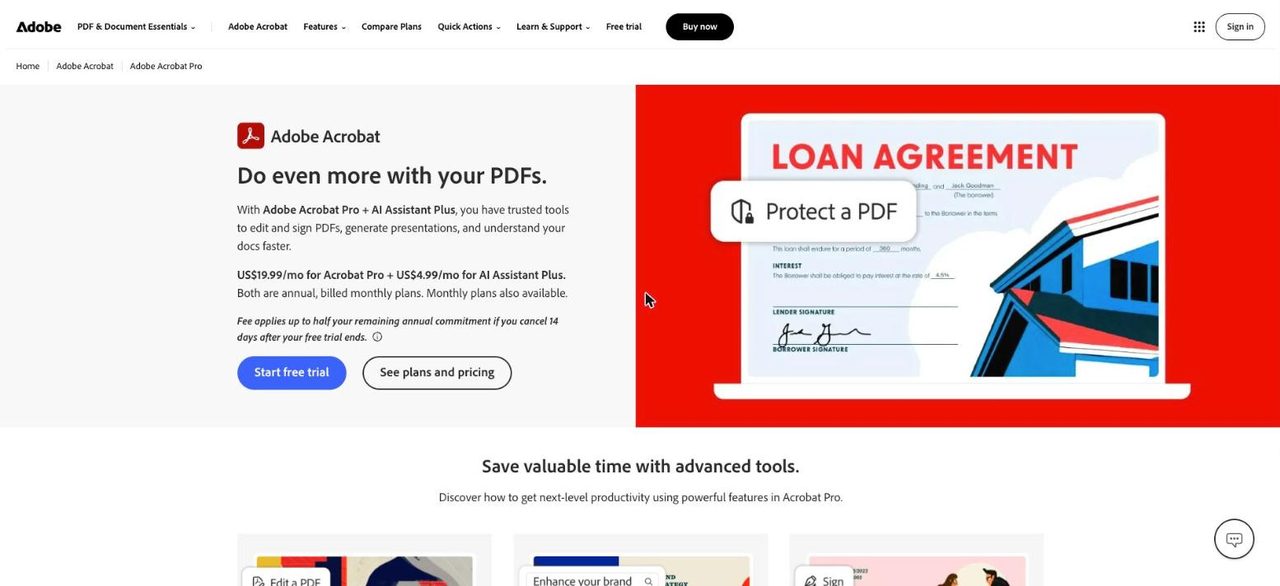
Best for oCR plus full PDF editing Acrobat Pro makes sense if you need OCR and also edit, sign and share PDFs. It turns scans into searchable and editable PDFs, and the plan covers desktop, mobile and web. Costs are higher than ABBYY, at $19.99 a month on an annual plan or $29.99 month to month.
What stands out
- Turns scans into searchable, editable PDFs
- $19.99/mo on an annual plan billed monthly, or $239.88 prepaid
- $29.99 month to month with no cancellation fee
- Works on desktop, mobile and web
Keep in mind
- Annual plans charge a fee or are non-refundable after 14 days
- Expensive if you only need OCR
 Google Drive
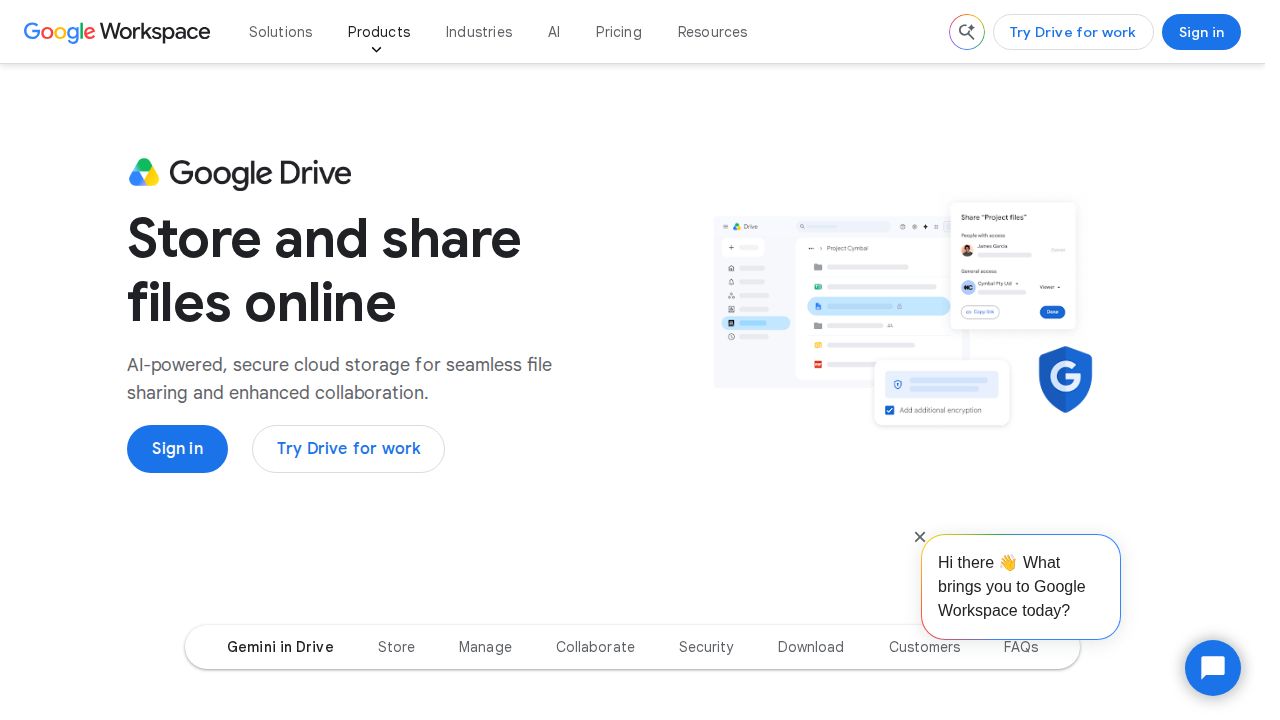
Best for free OCR for small files Google Drive has OCR built in. Open a PDF or image with Google Docs and Drive converts it to editable text, detecting the language automatically. It works best on clear, upright pages with common fonts. Files must be 2 MB or smaller, and tables and columns are unlikely to survive.
What stands out
- Free with a Google account
- Handles multipage PDFs, JPEG, PNG and GIF
- Detects the language automatically
- Usually keeps bold, italics, font size and line breaks
Keep in mind
- Files must be 2 MB or smaller
- Tables, columns, footnotes and lists are often lost
 PDF24
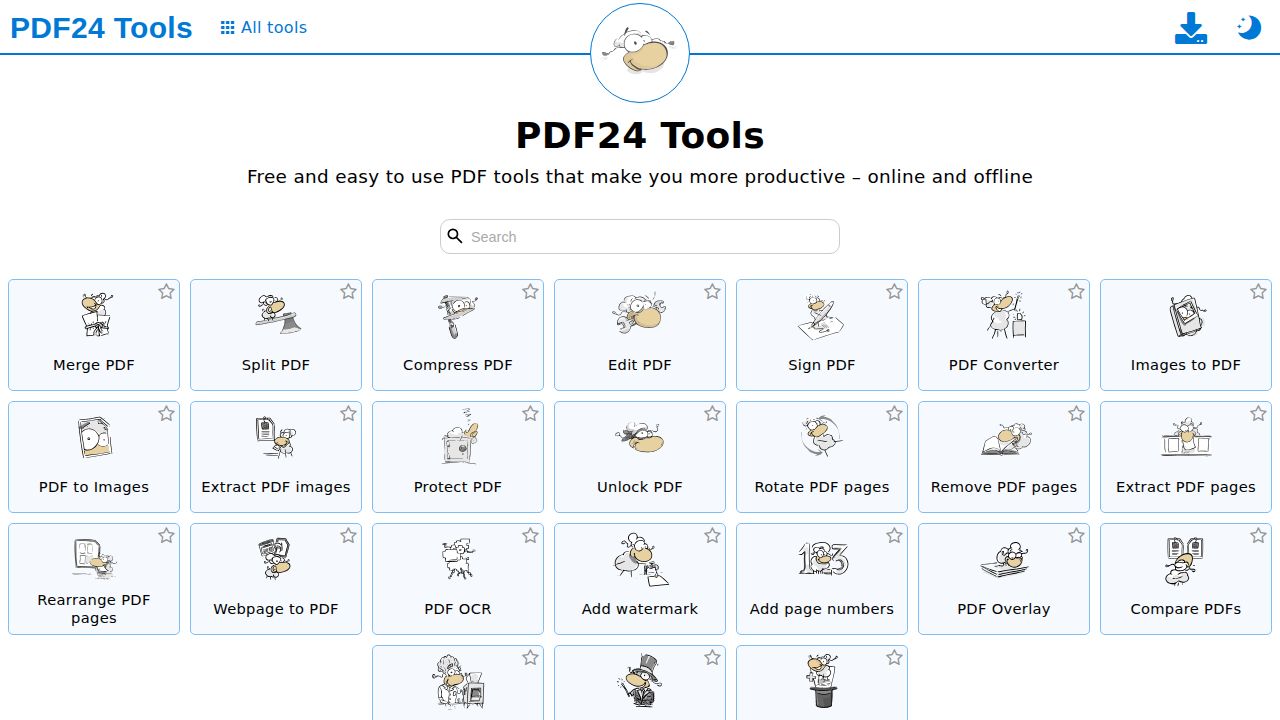
Best for free searchable PDFs in a browser PDF24 adds a text layer to scanned PDFs for free, so you can search and copy the text. It supports many languages, can save as PDF or PDF/A, and offers deskew and page cleanup options. There is no registration, and the company says there are no limits, though OCR can be slow.
What stands out
- Free with no registration
- Outputs searchable PDF or PDF/A
- Deskew and page cleaning options
- Uploaded files are removed after one hour
Keep in mind
- Ad-supported
- Web OCR needs an internet connection and can take time
Adobe Scan
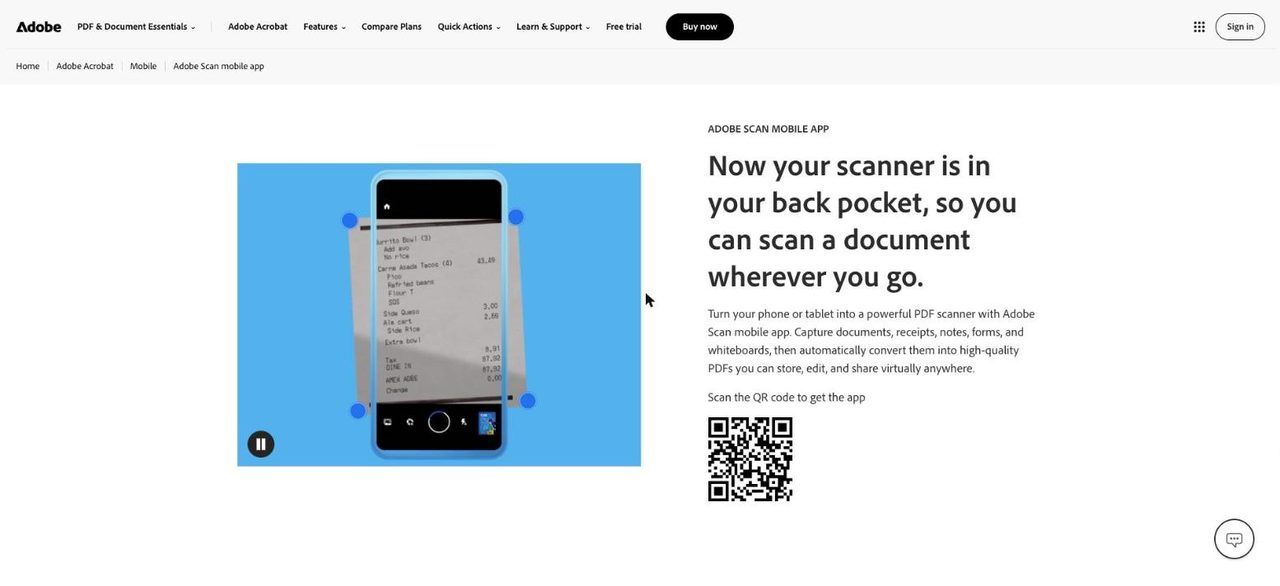
Best for scanning paper with your phone Adobe Scan is a free phone app that turns photos of documents into searchable PDFs using OCR. It runs on iPhone with iOS 15 or later and Android 8.0 or later. Scans can be opened later in Acrobat on desktop or web, while combining, converting and protecting files are tied to Acrobat Pro.
What stands out
- Free to download
- OCR makes scanned documents searchable
- iOS 15+ and Android 8.0+
- Scans sync to Acrobat desktop and web with an Adobe ID
Keep in mind
- Combining, converting and password protection are Acrobat Pro features
- Needs an Adobe ID to reach scans on other devices
 Genius Scan
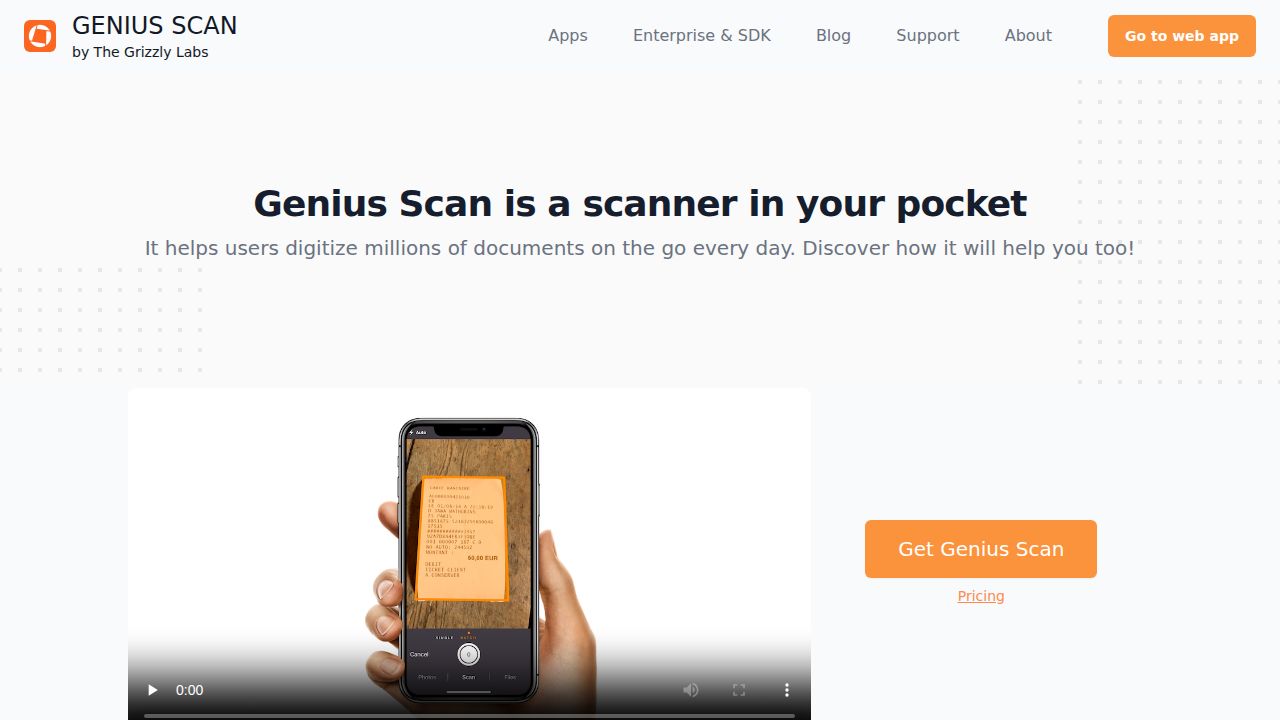
Best for a free scanner with paid OCR Genius Scan is a well-known document scanner for iPhone and Android with a free Basic plan that has no usage caps. OCR text recognition is a paid feature in Ultra, at $39.99 a year, which also adds cloud exports, backups, sync across devices and web access.
What stands out
- Free Basic plan with no usage caps
- Ultra adds OCR text recognition for $39.99 a year
- Ultra includes cloud backups and cross-device sync
- Available on iOS and Android, plus a web app
Keep in mind
- OCR is not included in the free plan
- Subscription billed yearly
 OnlineOCR.net
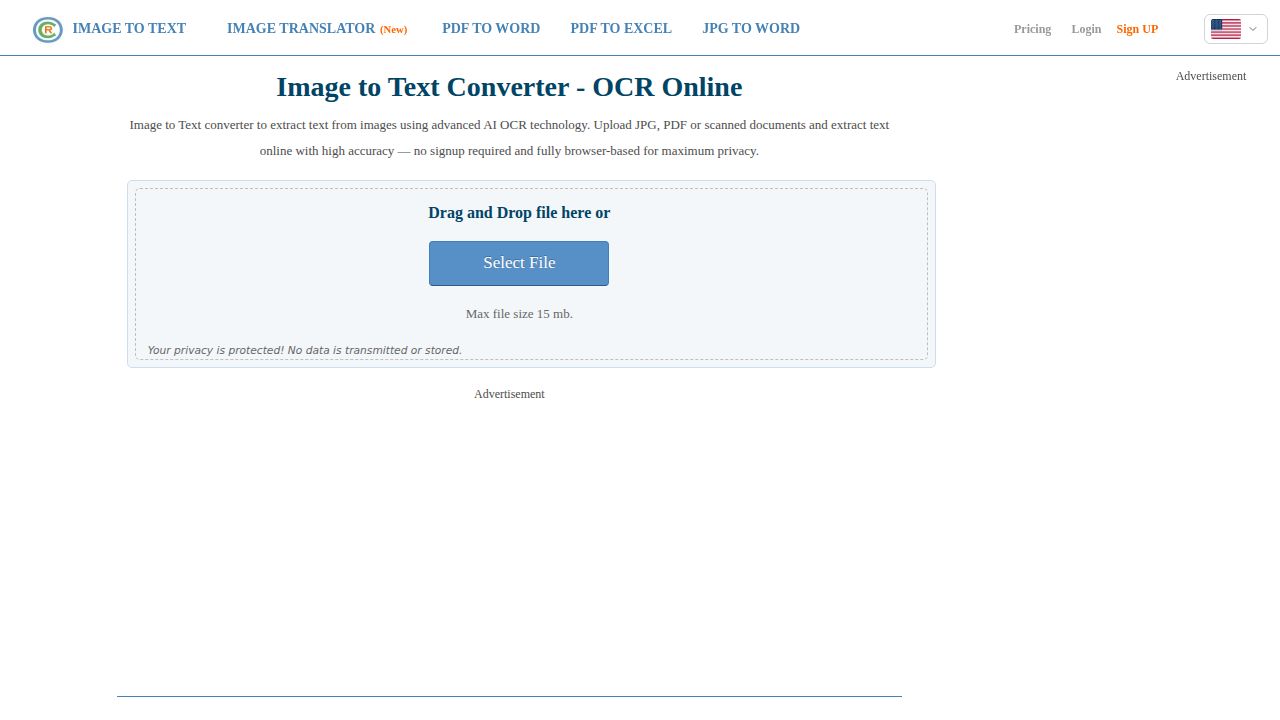
Best for quick one-off conversions to Word OnlineOCR.net is a simple web service for turning a scan or image into Word, Excel or plain text. Guests can convert 5 files an hour up to 15 MB each, with 46 recognition languages. Registering raises the file limit to 200 MB and unlocks multipage options.
What stands out
- No sign-up needed for guest conversions
- 46 recognition languages
- Outputs Word, Excel and plain text
- Registered users can upload files up to 200 MB
Keep in mind
- Guests are limited to 5 files an hour and 15 MB per file
- Paid plan prices were not shown on the homepage
How we chose
We compared each tool on what the company publishes:
- Free OCR access. Whether text recognition is free, and with what limits.
- Output. Searchable PDF, Word, Excel or plain text.
- Platform. Desktop, browser or phone.
- Price. The lowest paid plan that includes OCR.
This list is based on published plans and pricing, not lab testing. Where a price was not shown on the page we checked, we write “See site” instead of guessing.
Searchable PDF or editable document?
- Searchable PDF: The page looks the same, but you can search and copy the text. PDF24, Adobe Scan and Acrobat Pro do this.
- Editable document: The text goes into Word, Docs or Excel so you can rewrite it. Google Drive, OnlineOCR.net and ABBYY FineReader PDF cover this.
How to get better OCR results
- Scan or photograph pages flat, in even light, with strong contrast.
- Rotate pages so text is upright before running OCR.
- Use a higher resolution for small print.
- Pick the right recognition language if the tool asks.
- Proofread names, numbers and dates, since these are the costliest errors.
Which OCR tool fits your situation?
- A few receipts or letters a month: Adobe Scan or Google Drive, both free.
- A long scanned PDF you need to search: PDF24 in the browser.
- A one-off image to Word conversion: OnlineOCR.net without signing up.
- Archiving boxes of paperwork: ABBYY FineReader PDF or Acrobat Pro, which are built for volume.
- Phone scanning with OCR in one app: Genius Scan Ultra.
Frequently asked questions
What is the best free OCR software?
For small files, Google Drive is free and built in. For searchable PDFs, PDF24 is free with no registration, and Adobe Scan is a free phone app that makes scans searchable.
Can OCR read tables and handwriting?
Results vary. Google says tables, columns and footnotes are unlikely to be detected in Drive, so expect to fix layout by hand. Clear, high-contrast scans give the best results.
Do I need paid software for OCR?
Not for occasional use. Paid tools such as ABBYY FineReader PDF and Acrobat Pro make sense if you process many documents or need editable PDFs with formatting kept.
Is it safe to upload documents to an online OCR site?
PDF24 says it removes uploads after one hour. For tax, medical or legal papers, a desktop program keeps the file on your computer.
Sources
How we wrote this
This list is based on each company's published plans, prices and feature pages, not on hands-on lab testing. Facts were last checked on November 17, 2026. See our editorial policy.