No company paid to be on this list. Prices were checked on November 17, 2026 and can change. How we make money.
At a glance
| # | Product | Best for | Starting price | Free option |
|---|---|---|---|---|
| 1 | Free controls built into iOS | Free | Free | |
| 2 | One dashboard for iPhone and other devices | $59.95/yr | Free plan (1 device) | |
| 3 | Alerts on texts and photos | $14/mo | 7-day trial | |
| 4 | Simple filters and limits for many kids | $10/mo | 14-day trial | |
| 5 | Web rules and school-time focus | $49.99/yr | See site | |
| 6 | Web filtering with iOS app blocking | $54.99/yr | No |
The list
 Apple Screen Time
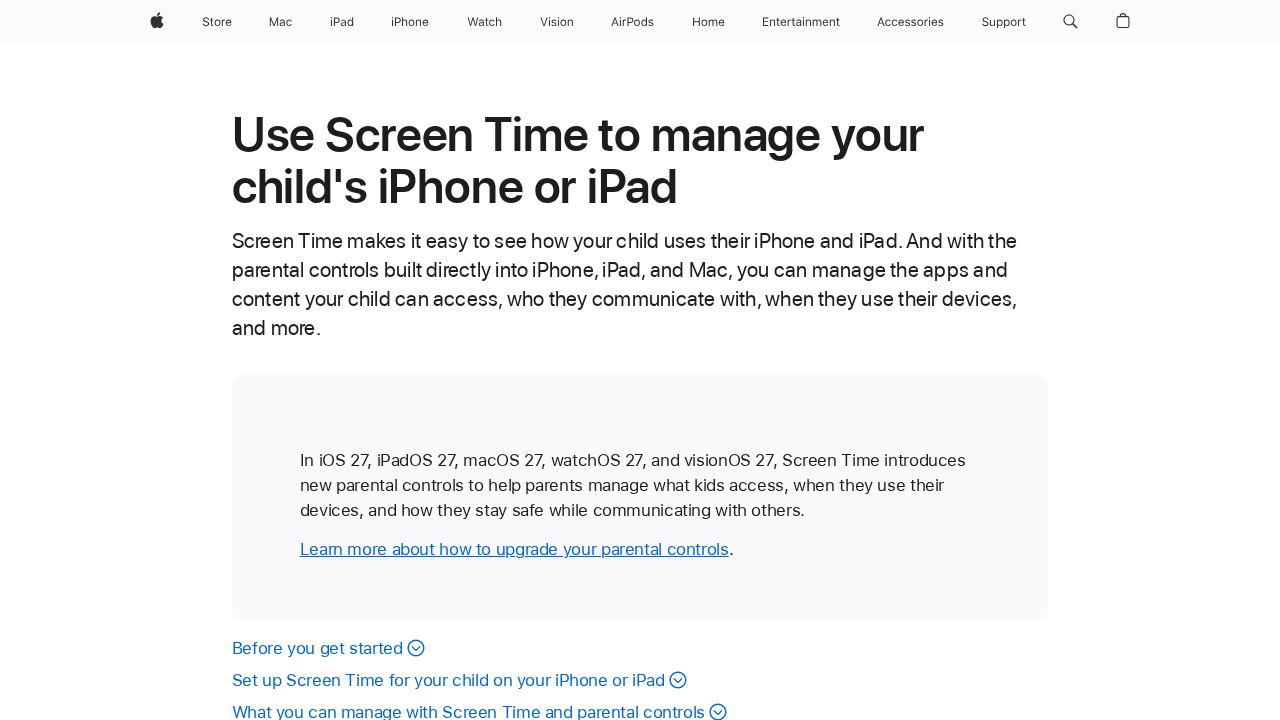
Best for free controls built into iOS Screen Time is made by Apple, so it does not run into the limits that outside apps face on an iPhone. Parents manage it from their own device through Family Sharing. It covers time allowances, schedules, approvals for purchases and websites, contact limits and Communication Safety for sensitive photos and videos.
What stands out
- Built into iPhone and iPad, with nothing to install
- Ask to Browse is on by default for children under 13
- Parents can pause device use or change the day's schedule
- Messages from new senders stay hidden until a parent approves them
Keep in mind
- Requires Family Sharing and a Child Account for each child
- The newest Screen Time experience requires iOS 27 or iPadOS 27
 Qustodio
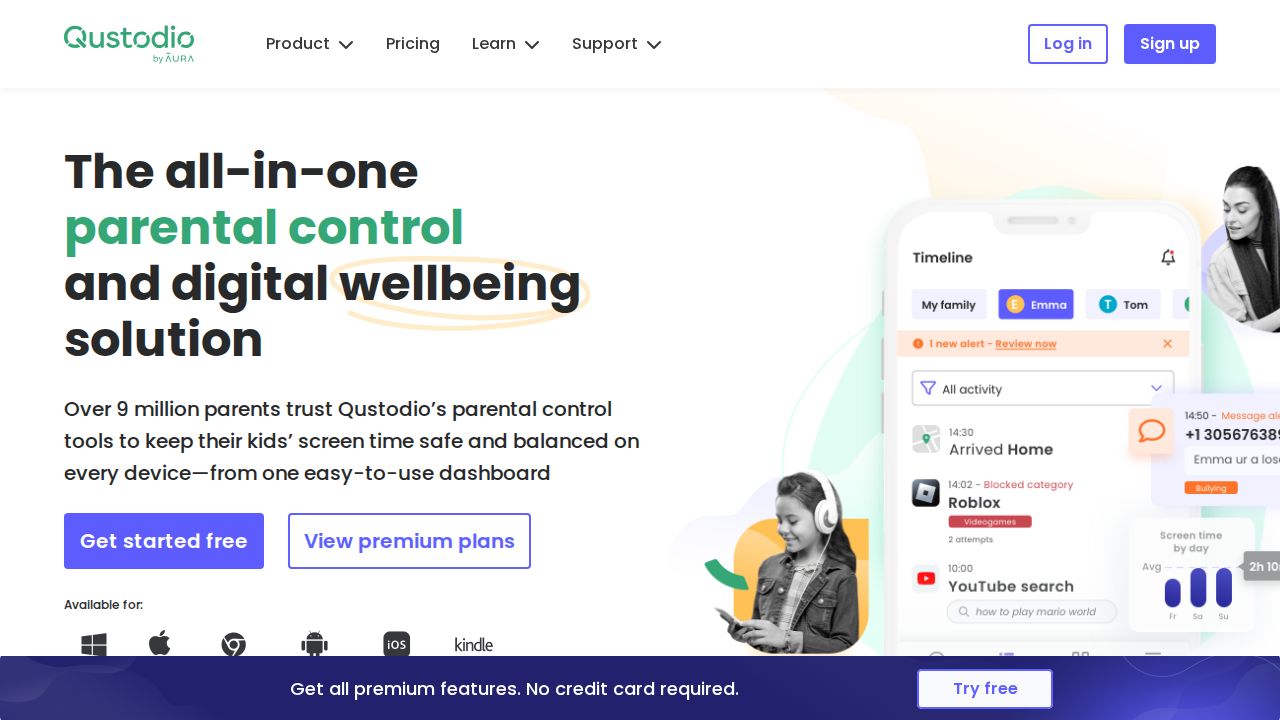
Best for one dashboard for iPhone and other devices Qustodio makes sense when an iPhone is one of several devices your kids use. The same account also covers Windows, Mac, Chromebook, Android and Kindle. It lists web filtering, daily time limits, location monitoring and 30-day activity reports, with a free plan for one device.
What stands out
- Basic plan covers up to 5 devices for $59.95 a year
- Complete plan is $104.95 a year for unlimited family devices
- Free plan for a single device
- 30-day money-back guarantee
Keep in mind
- Calls and messages monitoring for iOS requires a Windows or Mac computer
- The panic button is Android only
- Message alerts for Instagram, TikTok, Snapchat and X are Android only
 Bark
Best for alerts on texts and photos Bark is open about how Apple's privacy protections affect it. The Bark Kids app on the iPhone handles blocking and location. To scan texts, photos and videos, you add Bark Sync, a charger that scans the phone when plugged in, or run the Bark Desktop App on a home computer.
What stands out
- $14 a month or $99 a year for unlimited children and devices
- Sends alerts on flagged issues, not a full log of messages
- On iOS, monitoring also covers notes and voice memos
- Website and app blocking, screen time schedules and location alerts
Keep in mind
- Bark Sync costs an extra $6 a month or $49 a year
- Bark lists no iOS coverage for Discord, TikTok, Snapchat, Instagram and Roblox
- No free plan
 Aura
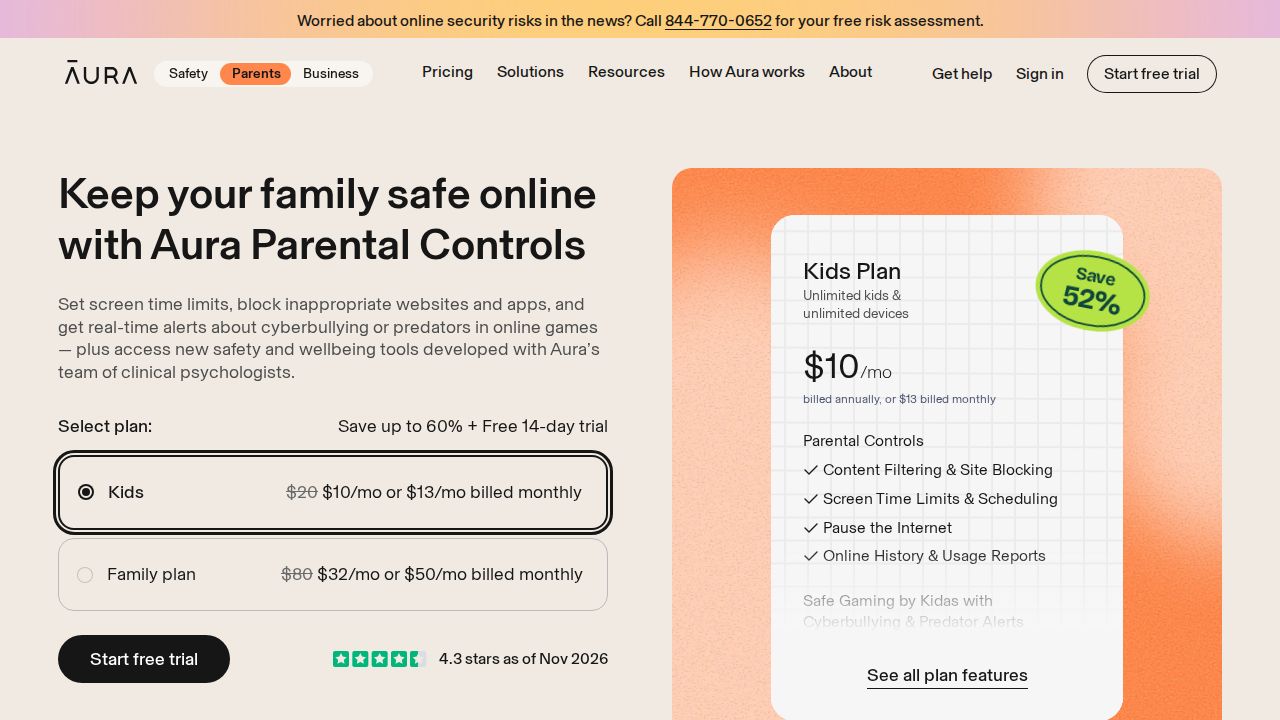
Best for simple filters and limits for many kids Aura keeps its Kids plan focused: content filtering, site blocking, screen time limits and schedules, a pause button for the internet, and usage reports. It covers unlimited kids and devices, which helps in a home with several iPhones and iPads. A 14-day free trial lets you check it first.
What stands out
- Kids plan is $10 a month billed annually, or $13 billed monthly
- Unlimited kids and devices
- 14-day free trial
- 60-day money-back guarantee on annual plans bought from Aura
Keep in mind
- Supports iPhones and iPads on iOS 16 or later only; iPods are not supported
- Aura says it does not monitor all content or behavior in real time
- Safe Gaming alerts work only on Windows PCs
 Norton Family
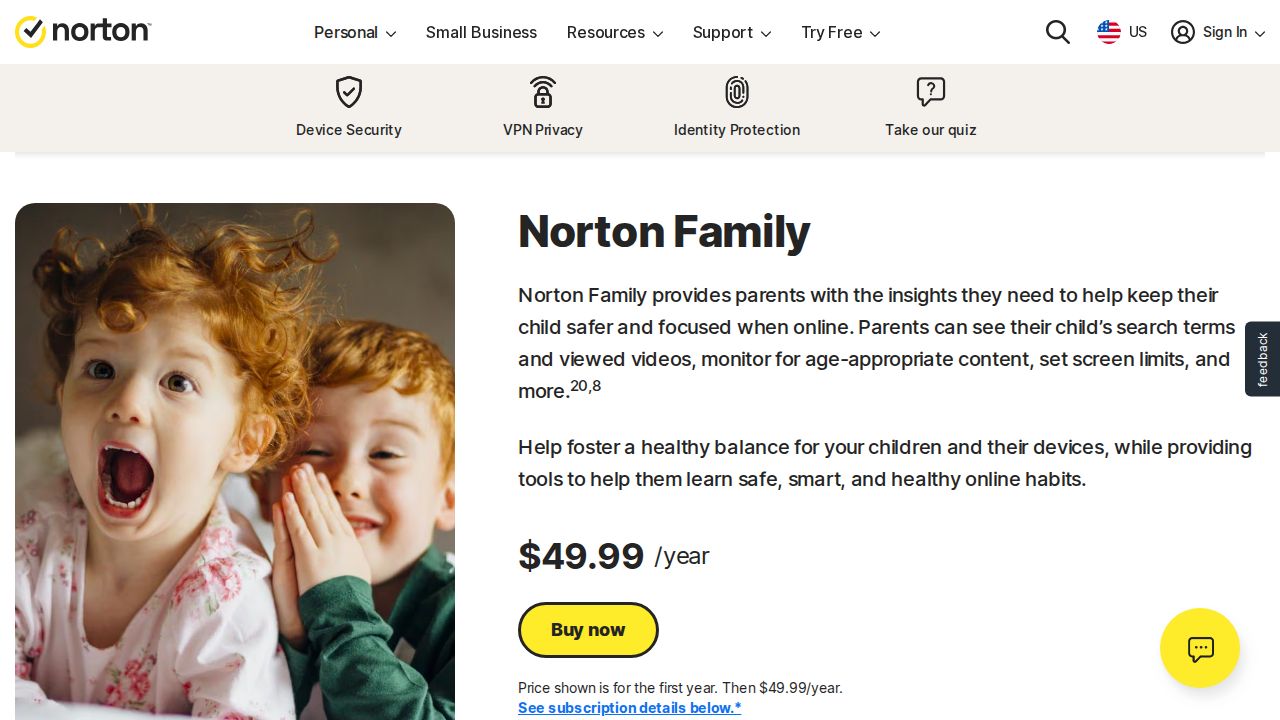
Best for web rules and school-time focus Norton Family brings web supervision, time limits, Instant Lock and a School Time mode to iPhone. It supports the current and previous two versions of iOS. Parents can manage it from a phone or the web. Several features work differently on iOS than on Windows or Android, so check the list first.
What stands out
- $49.99 for the first year
- Web, time and location supervision available on iOS
- School Time and Instant Lock available on iOS
- Children can send access requests for a blocked site
Keep in mind
- App supervision is not listed for iOS
- Video and search supervision on iOS require the in-app Norton Browser
- The renewal price was not shown and may be higher
 Net Nanny
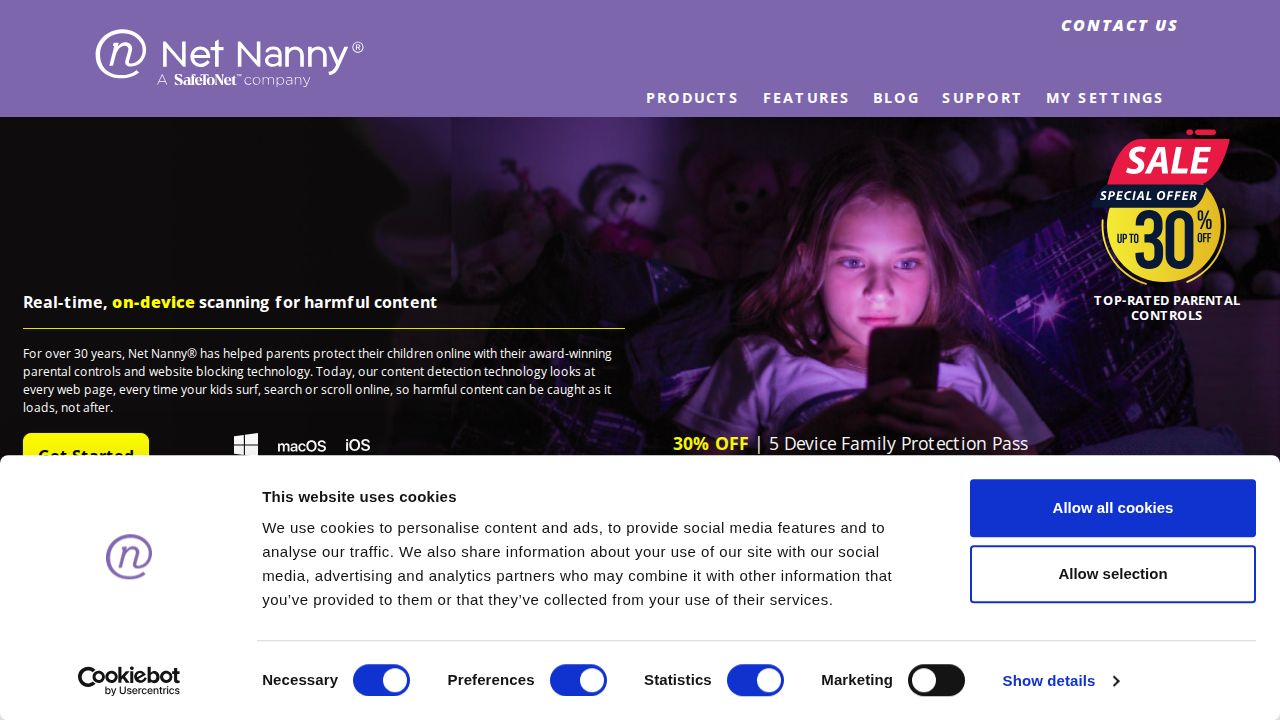
Best for web filtering with iOS app blocking Net Nanny's Family Protection Pass is the plan that includes iOS. It centers on an internet filter and website blocker, and Net Nanny lists app blocking specifically for iOS devices. Screen time management, location tracking and a Family Feed of alerts are also on the feature list.
What stands out
- Family Protection Pass covers 5 devices for $54.99 a year
- A 20-device pass is $89.99 a year
- App blocking is listed for iOS devices
- Internet filter, website blocker and screen time management
Keep in mind
- The cheaper 1 Desktop plan covers Windows or macOS only, not iOS
- Prices shown are discounted from $79.99 and $129.99
- No free plan or trial listed
How we chose
For this iPhone and iPad list we looked at four things on each company’s own pages:
- Stated iOS support. Which iOS versions and devices are covered.
- Published iOS limits. Features the company says are missing, reduced or need extra hardware on iPhone.
- Price for a family. The lowest plan that includes iOS and how many devices it covers.
- A low-risk way to start. A free plan, a trial or a money-back guarantee.
Nothing here is based on lab testing. It reflects published plans and pricing. Where a detail was not published, we write “See site”.
What third-party apps cannot do on iPhone
The vendors themselves list these limits:
- Reading texts and photos directly on the phone (Bark needs Bark Sync or its desktop app)
- Calls and messages monitoring without a computer (Qustodio)
- App supervision (not listed for iOS by Norton Family)
- Coverage of some social apps (Bark and Qustodio both list gaps)
If one of these matters to you, confirm it on the company’s site before paying.
Set up Screen Time first
- Create a Child Account for your child and add it to Family Sharing.
- Update the devices in your family group so settings sync.
- Set the Screen Time passcode from your own device, not your child’s.
- Choose content ratings, time allowances and a schedule.
- Walk your child through what you set and how to send a request.
Then add a paid app only if Screen Time leaves a gap you care about.
Frequently asked questions
Does iPhone have built-in parental controls?
Yes. Apple Screen Time is built into iPhone and iPad. With Family Sharing, a parent can set time allowances, schedules, content ratings and approvals from their own device.
Why do parental control apps do less on iPhone than on Android?
Apple restricts what third-party apps can read on a device. Bark says this is why it needs Bark Sync or a desktop app to scan texts and photos, and Qustodio needs a computer for calls and messages on iOS.
Can I use Google Family Link on an iPhone?
A parent can run the Family Link app on an iPhone. On a child's iPhone, Google says only YouTube and Google Search settings apply, so it is not a full control tool for iOS.
Do I need a paid app if I already use Screen Time?
Many families do not. A paid app adds value if you also manage Android or Windows devices, or want alerts about worrying messages.
Can my child see that parental controls are on?
Yes, and they should. These tools are meant to be used openly. Tell your child what is limited and why before you set anything up.
Sources
How we wrote this
This list is based on each company's published plans, prices and feature pages, not on hands-on lab testing. Facts were last checked on November 17, 2026. See our editorial policy.