No company paid to be on this list. Prices were checked on November 17, 2026 and can change. How we make money.
At a glance
| # | Product | Best for | Starting price | Free option |
|---|---|---|---|---|
| 1 | Time budgets on iPhone, iPad and Mac | Free | Free | |
| 2 | Daily limits and app timers on Android | Free | Free | |
| 3 | Gaming time on Windows and Xbox | Free | Free | |
| 4 | One schedule across many devices | $59.95/yr | Free plan (1 device) | |
| 5 | Pausing the internet for every kid | $10/mo | 14-day trial | |
| 6 | School-hour focus and instant lock | $49.99/yr | See site | |
| 7 | Screen time plus web filtering | $39.99/yr | No |
The list
 Apple Screen Time
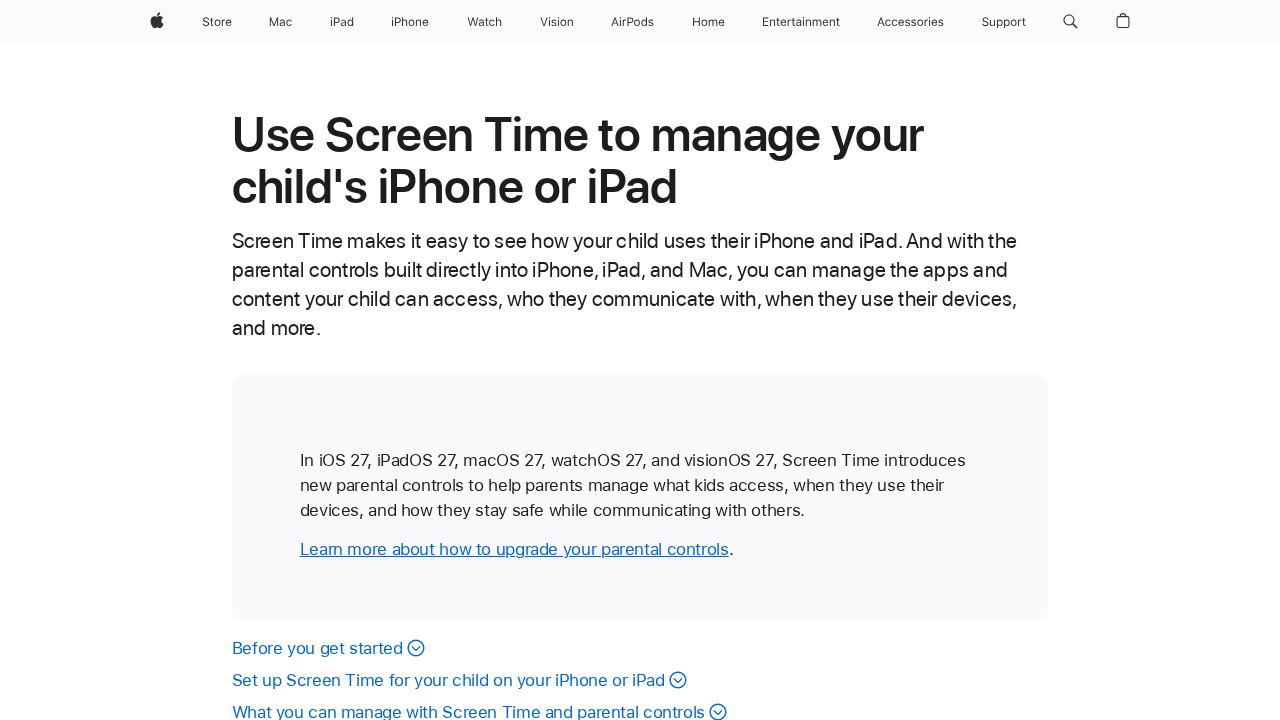
Best for time budgets on iPhone, iPad and Mac Screen Time lets a parent set a daily time budget across app categories, adjust single categories, and build schedules for different parts of the day. Weekday and weekend routines can differ. On a given day, a parent can pause the device, allow unlimited use or change that day's schedule from their own phone.
What stands out
- Daily time budget across app categories
- Separate weekday and weekend schedules
- Pause, unlimited use or a one-day change from the parent's device
- Built in, with nothing to install
Keep in mind
- Needs Family Sharing and a Child Account for each child
- The newest version needs iOS 27, iPadOS 27 or macOS 27 on every family device
 Google Family Link
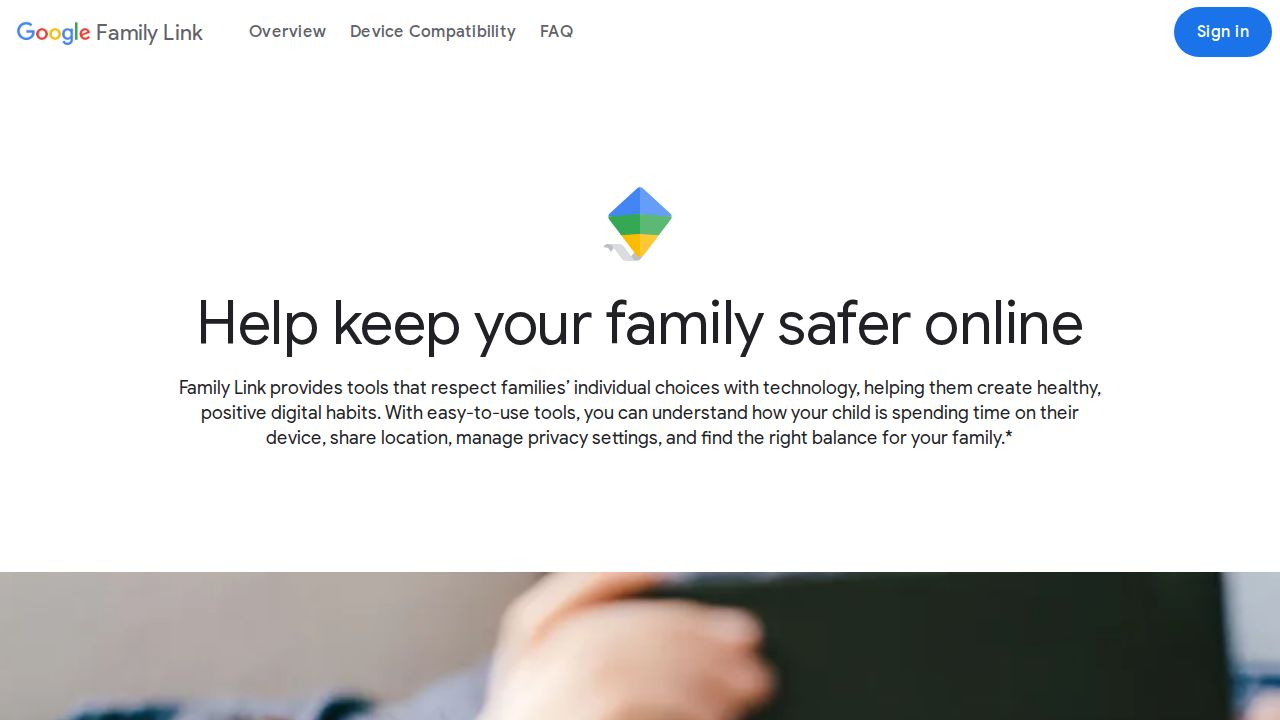
Best for daily limits and app timers on Android Family Link covers the three screen time controls most parents want on Android: a daily amount, scheduled downtime such as bedtime, and limits on single apps. Educational apps can be given unlimited time, so homework tools keep working after the daily limit runs out.
What stands out
- Daily screen time amount
- Scheduled downtime and school time
- Per-app limits, with unlimited time for chosen apps
- Works on certain Android and Chrome devices
Keep in mind
- Screen time limits do not apply on a child's iPhone
- Covers only Google's own platforms
 Microsoft Family Safety
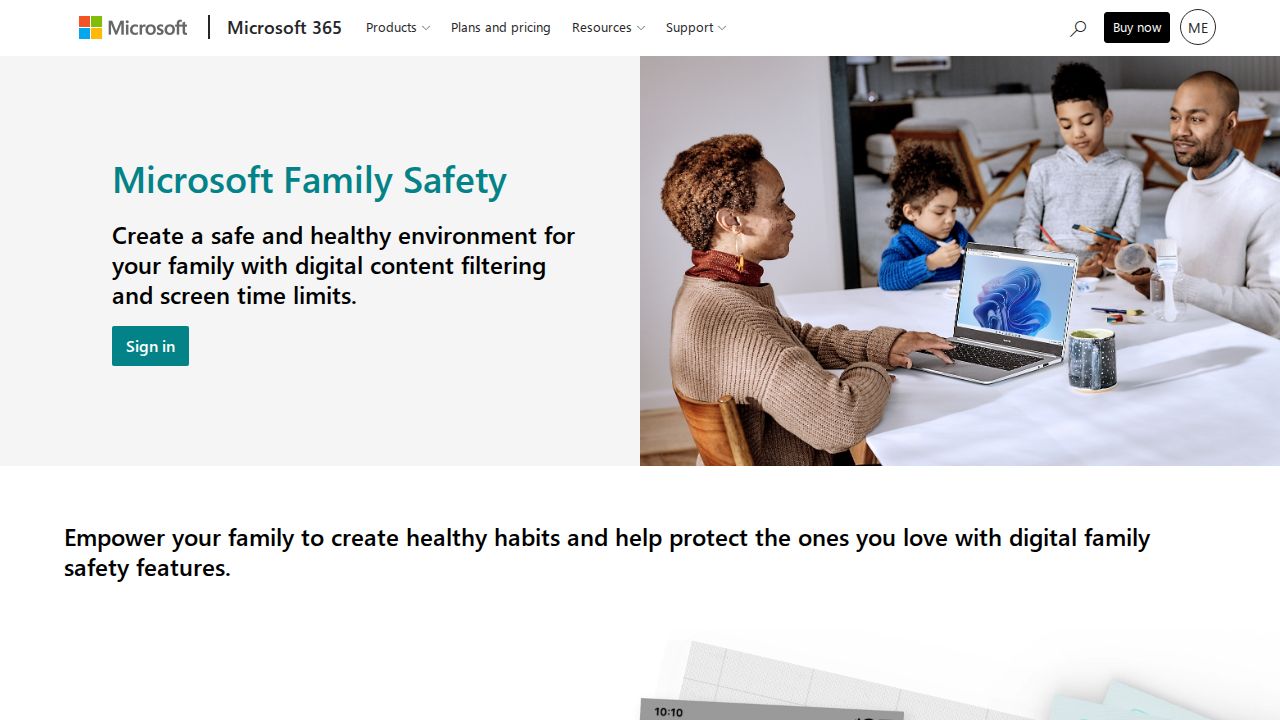
Best for gaming time on Windows and Xbox For a child whose screen time is mostly PC gaming or Xbox, Family Safety is the free tool to use. It sets limits for the whole device and for single apps and games on Windows 10 and 11, Xbox One and Xbox Series X|S. Children can ask for more time and parents get activity summaries.
What stands out
- Device screen time limits on Windows and Xbox
- App and game limits on Windows, Xbox and Android
- Screen time requests from the child
- Activity summaries for parents
Keep in mind
- No screen time limits listed for iOS
- Device-wide limits are not listed for Android
 Qustodio
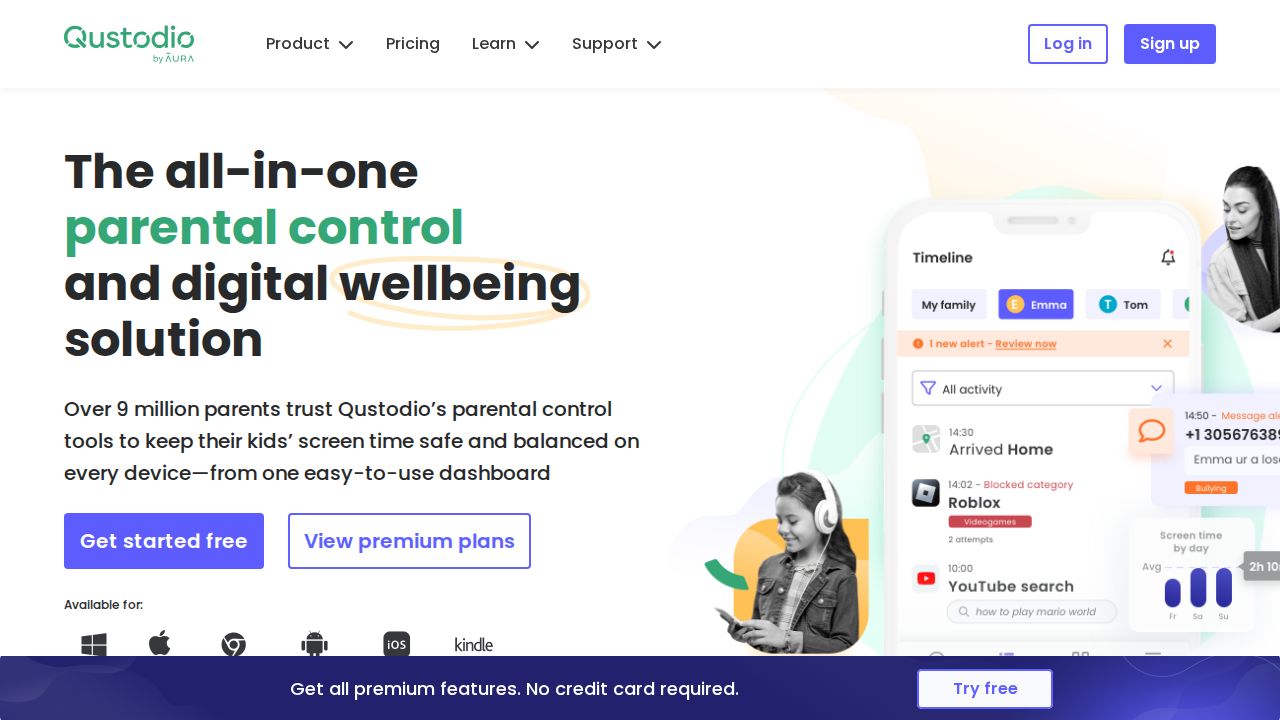
Best for one schedule across many devices Qustodio is a good fit when one set of time rules needs to follow a child across a phone, a laptop and a Kindle. It lists daily time limits, device blocking routines such as bedtime, a pause for internet access and 30-day activity reports. A free plan covers one device.
What stands out
- Daily time limits and device blocking routines
- Pause internet access with one action
- 30-day activity reports
- Runs on Windows, Mac, Chromebook, Android, iOS and Kindle
Keep in mind
- Basic is $59.95 a year for 5 devices; unlimited devices need Complete at $104.95 a year
- Free plan covers only one device
 Aura
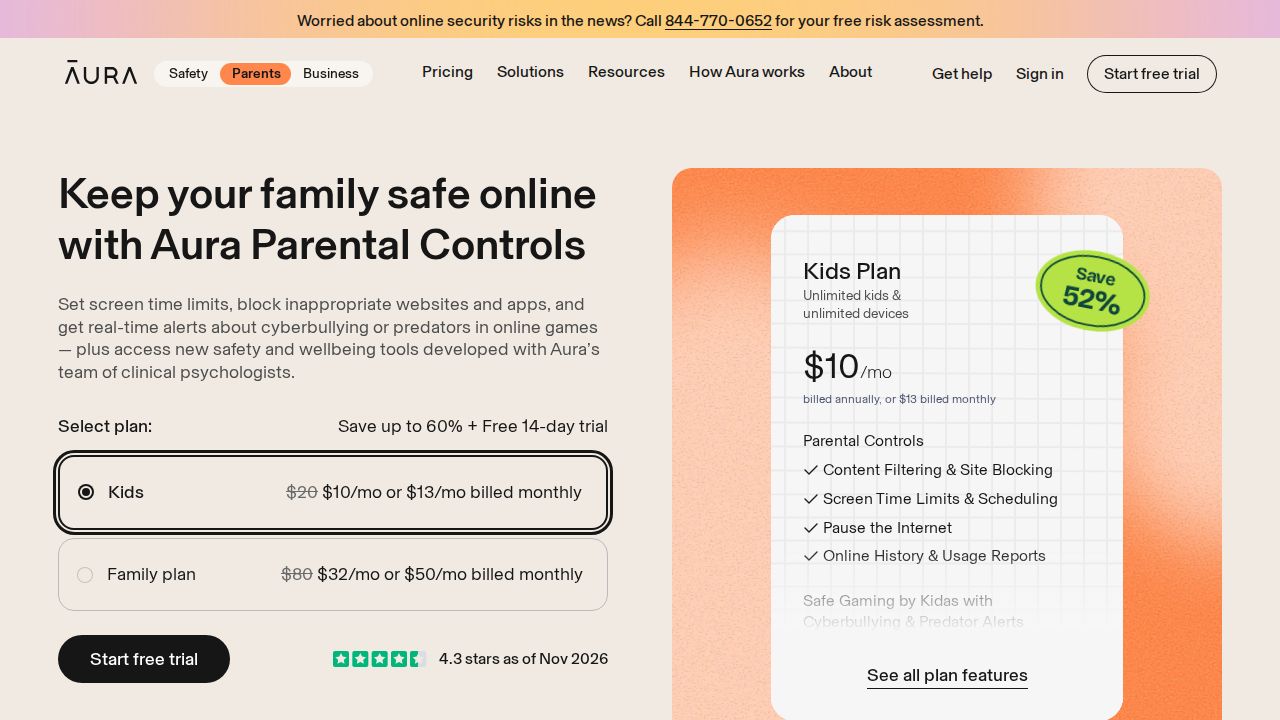
Best for pausing the internet for every kid Aura's Kids plan pairs screen time limits and scheduling with a Pause the Internet control and usage reports. Because one plan covers unlimited kids and devices, it is practical for a house where several children share rules such as no screens at dinner or after bedtime.
What stands out
- Screen time limits and scheduling
- Pause the Internet control
- Online history and usage reports
- Unlimited kids and devices for $10 a month billed annually
Keep in mind
- Monthly billing costs $13 a month
- Needs iOS 16 or Android 12 or later
 Norton Family
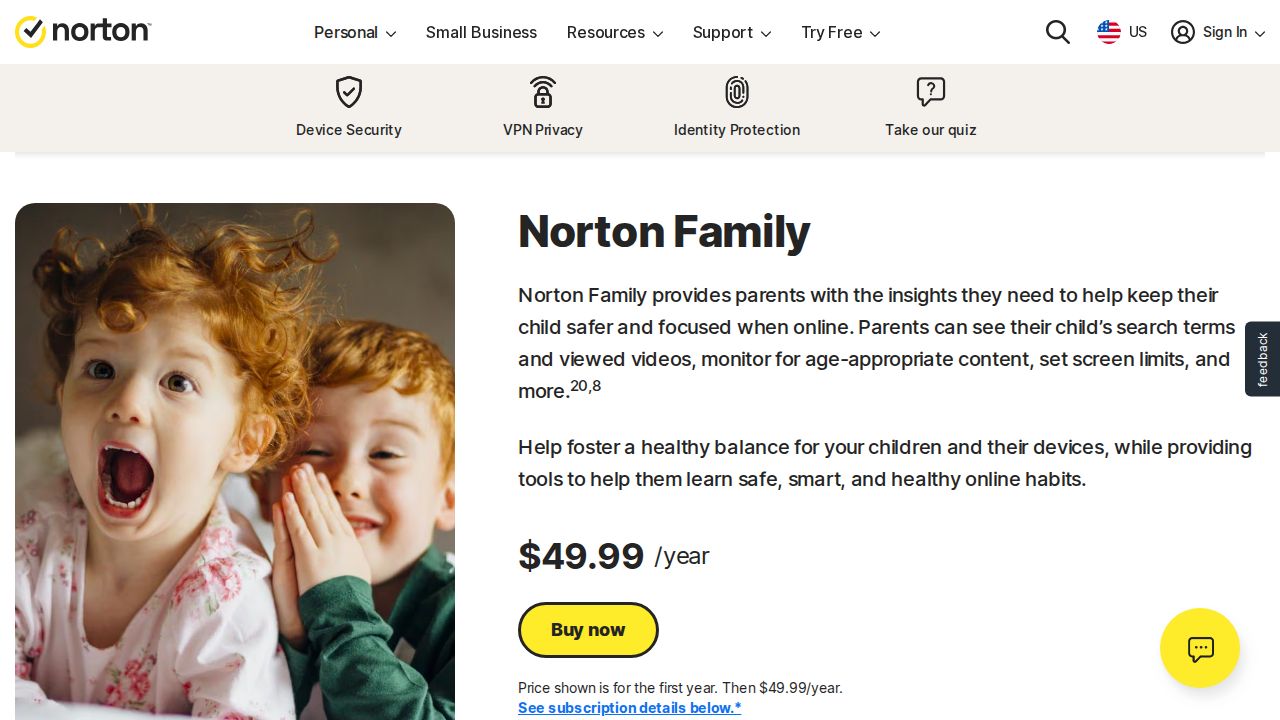
Best for school-hour focus and instant lock Norton Family's time tools center on school days. Time Supervision sets daily hour limits and schedules, School Time allows study sites while blocking distractions during class hours, and Instant Lock locks a device on the spot with a PIN to unlock. It works on Windows, Android and iOS.
What stands out
- Daily hour limits and usage schedules
- School Time mode for school hours
- Instant Lock with PIN unlock
- $49.99 for the first year
Keep in mind
- Not supported on Mac
- The renewal price was not shown and may be higher
 Net Nanny
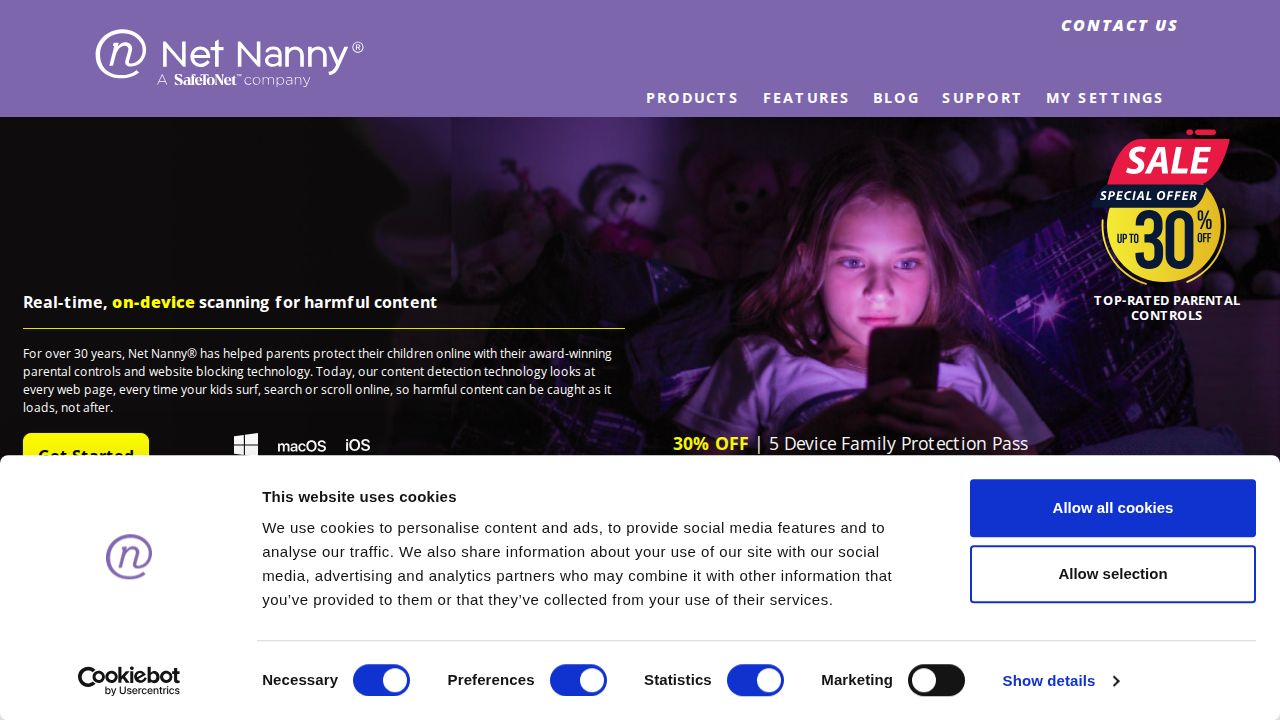
Best for screen time plus web filtering Net Nanny lists screen time management alongside its main strength, an internet filter that blocks adult content and flags risky searches. It suits families who want time limits and web filtering together. The 1 Desktop plan covers one computer, and Family Protection Pass plans add iOS devices.
What stands out
- Screen time management
- Internet filter and website blocker
- Family Feed reports searches and flagged content
- Family Protection Pass covers 5 devices for $54.99 a year
Keep in mind
- No free plan or trial listed
- Prices shown are discounted from regular rates of $49.99 to $129.99
How we chose
This list is about time, not monitoring. We compared each tool’s published features on:
- Daily limits. A total time budget for the device or for app categories.
- Schedules. Bedtime, school hours and different rules for weekends.
- Per-app or per-game limits. So one game does not use up the whole day.
- Flexibility. A way for kids to ask for more time and for parents to pause or adjust quickly.
The list is based on published plans and pricing, not lab testing. Where a price was not shown, we write “See site”.
Build a screen time plan your kids will follow
- Sit down together and list the times screens are off, such as meals and the hour before bed.
- Set a daily total that leaves room for homework and sleep.
- Give educational apps more room than games or video.
- Agree on how to ask for extra time, and when the answer will be yes.
- Review the plan every few months.
Mixing tools
Many families need more than one tool. A child might have an iPhone, a Windows laptop and an Xbox. Using Apple Screen Time on the phone and Microsoft Family Safety on the PC and console costs nothing. A paid app like Qustodio or Aura is worth it when you would rather manage everything from one place.
Whatever you choose, keep the rules the same across devices where you can. A bedtime cutoff on the phone means little if the laptop and console stay on, and kids notice when rules do not match.
Frequently asked questions
What is the best free screen time app?
Use the one made for your child's device. Apple Screen Time fits iPhone, iPad and Mac, Google Family Link fits Android and Chromebook, and Microsoft Family Safety fits Windows and Xbox.
Can I set different limits for school days and weekends?
Yes. Apple Screen Time supports separate weekday and weekend routines, and Norton Family has a School Time mode for school hours.
Can my child ask for more screen time?
With several of these tools, yes. Microsoft Family Safety has screen time requests, and Apple Screen Time lets parents change the day's schedule or allow unlimited use from their own device.
How do I limit gaming on an Xbox?
Microsoft Family Safety sets device and game limits on Xbox One and Xbox Series X|S at no cost.
How much screen time should a child have?
There is no single number. Focus on protecting sleep, homework and family time, then agree on the rest with your child and adjust as they grow.
Sources
How we wrote this
This list is based on each company's published plans, prices and feature pages, not on hands-on lab testing. Facts were last checked on November 17, 2026. See our editorial policy.